Steam Cannot reCAPTCHA check your connection And Try again - Steam
You have to follow the step-by-step instructions to fix this error.
1. First, you will need to open up the Control Panel.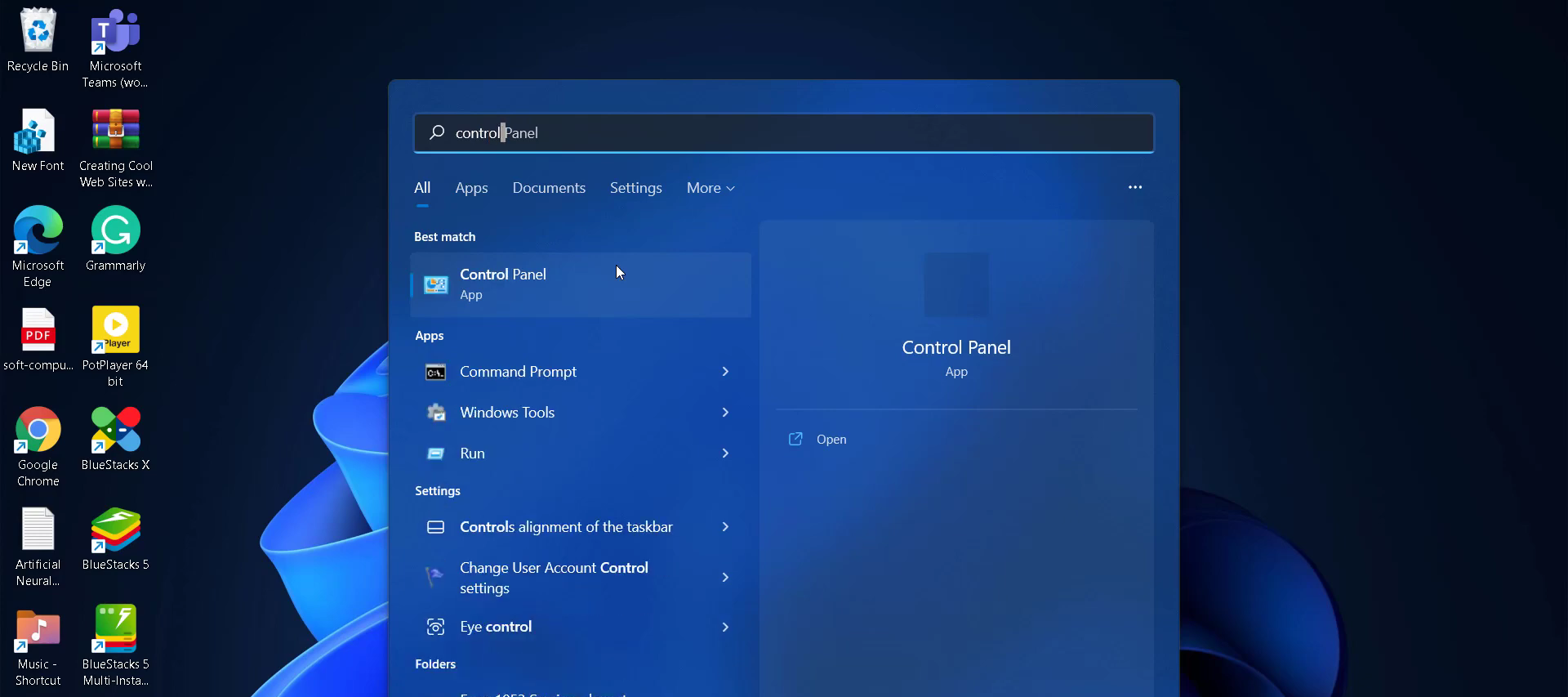
- And navigate to Network and Internet.
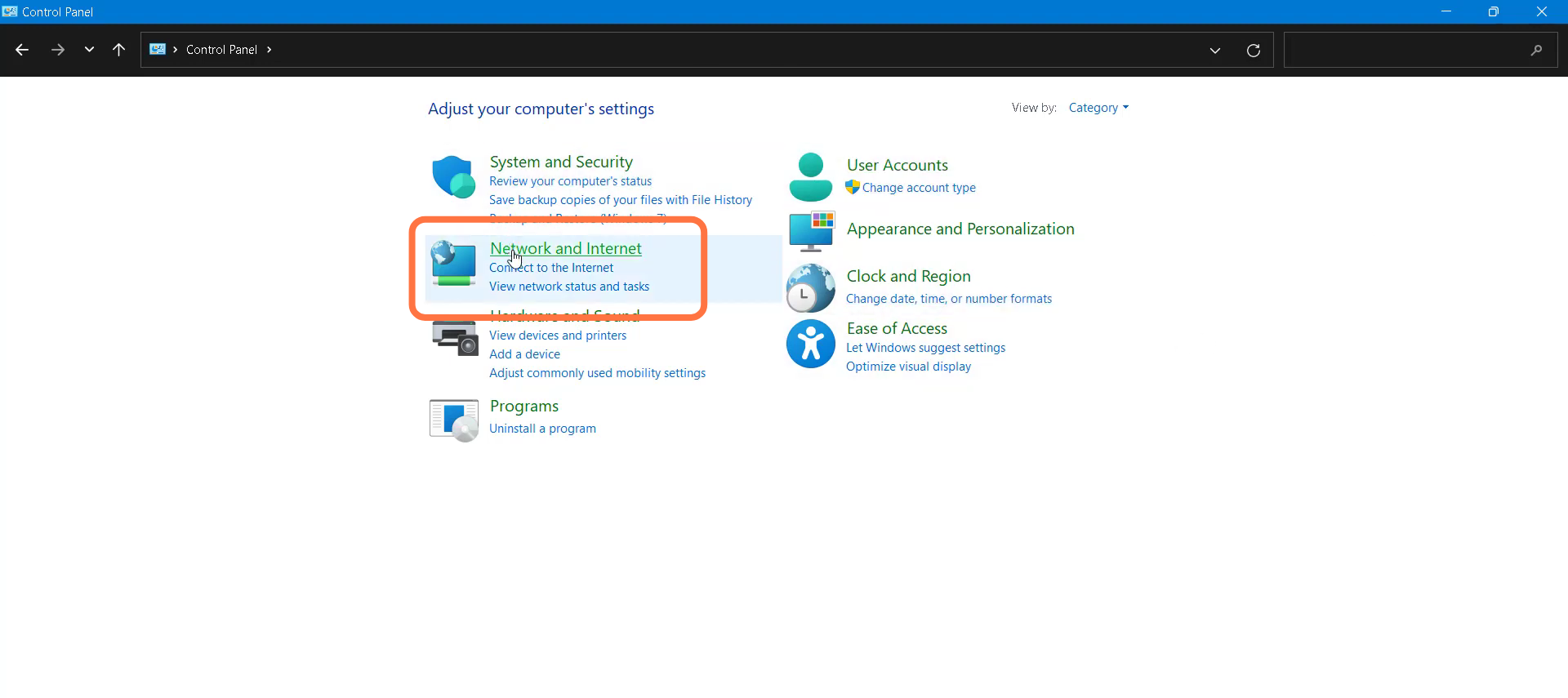
- Double-click on "Network and Sharing Center".
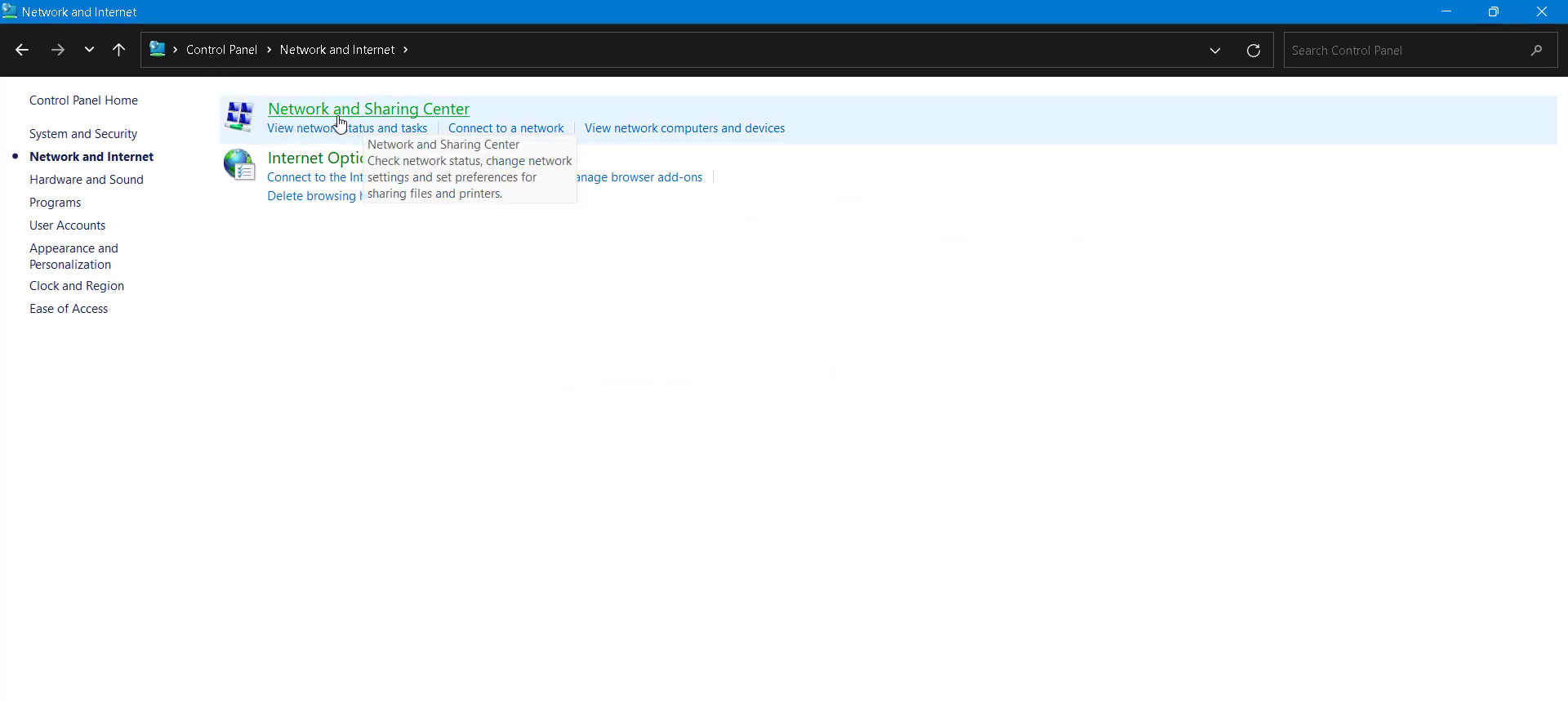
- And tap on "Change adapter settings".

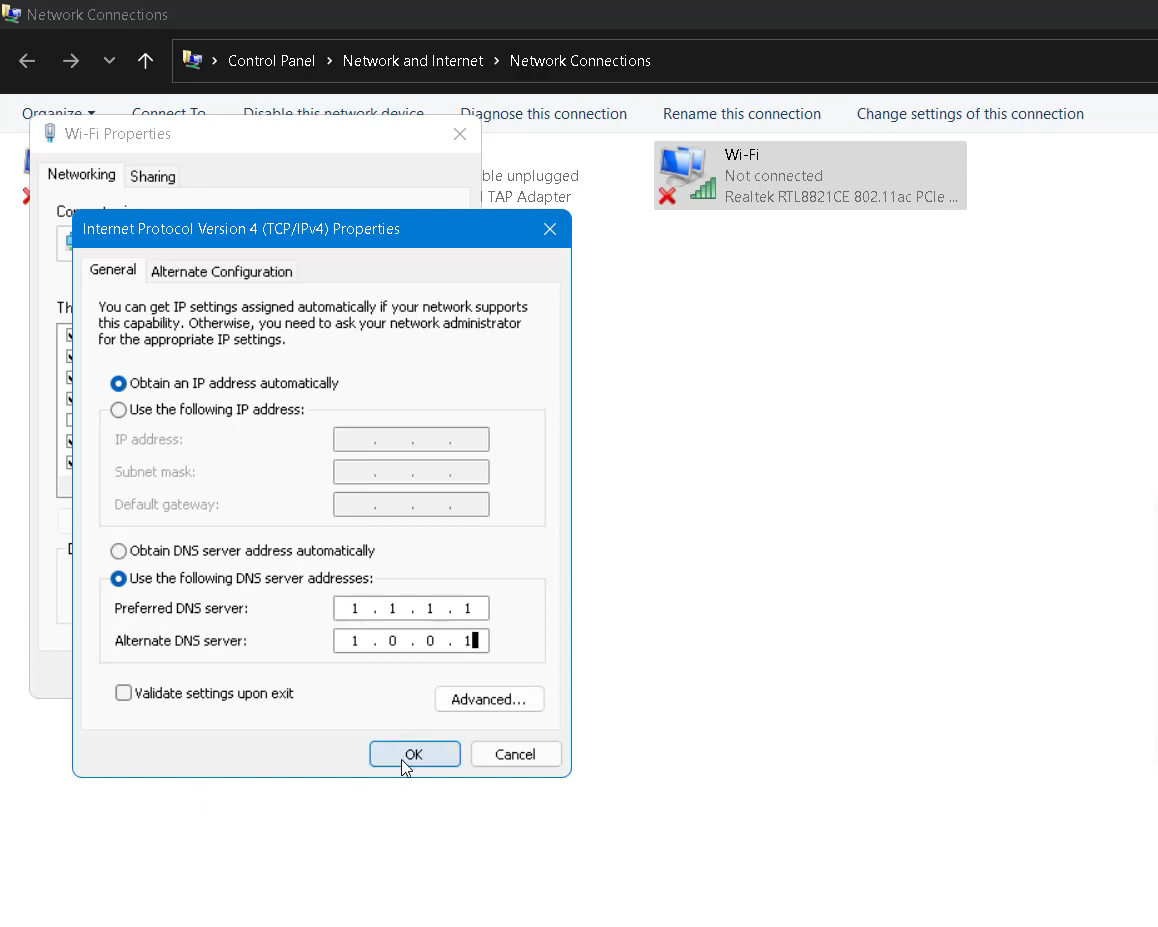
- Right Click on Wi-fi and go to properties.

- You need to select "use the Following DNS server addresses", type 1.1.1.1 in the Preferred DNS server, and 1.0.0.1 in the Alternate DNS server.
- And then run Command prompt as administrator.

- Input the ipconfig /flushdns, ipconfig /renew, netsh winsock reset commands, and then press Exit.
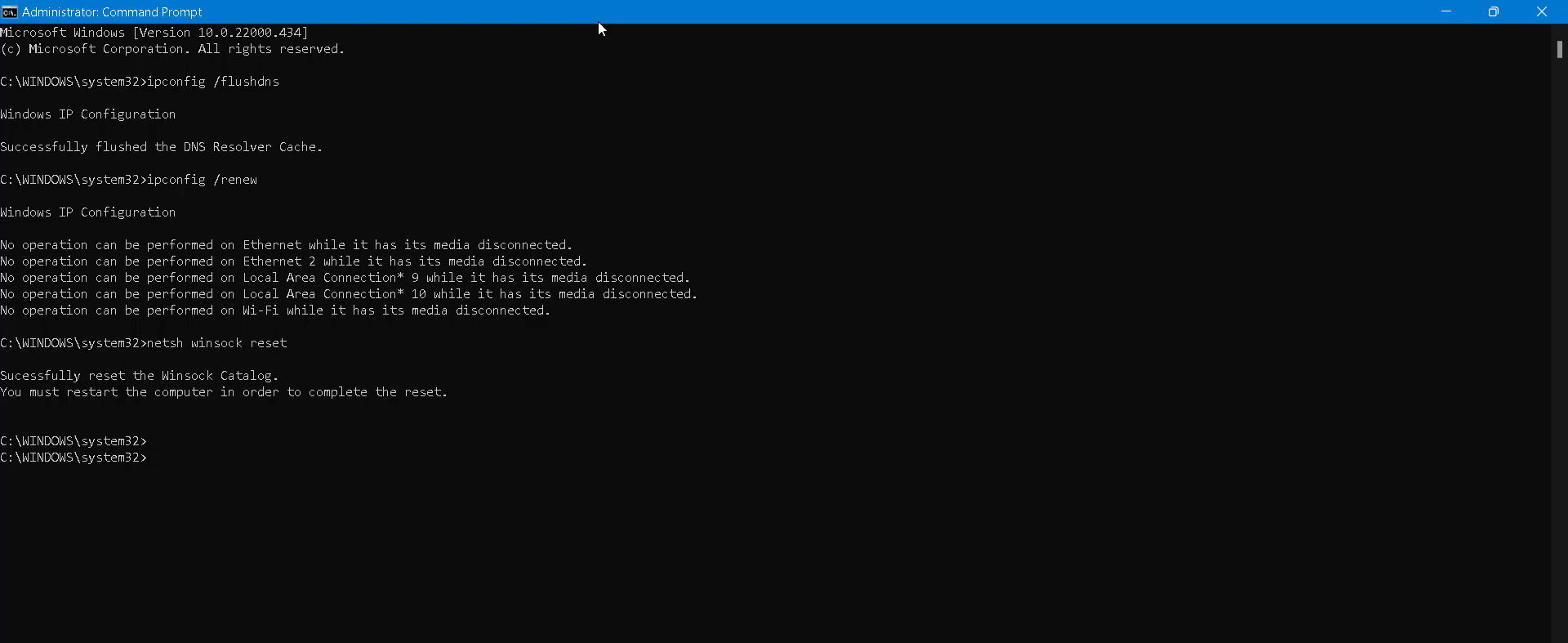
- After that, restart your PC to check if the error is resolved.