Settings for Tower Of Fantasy, Increase FPS
This guide will help you optimize your computer’s gaming performance. You’ll need to make changes in Windows settings, update your GPU drivers, and adjust in-game graphics settings to achieve the best FPS.
Table of Contents
Windows Settings
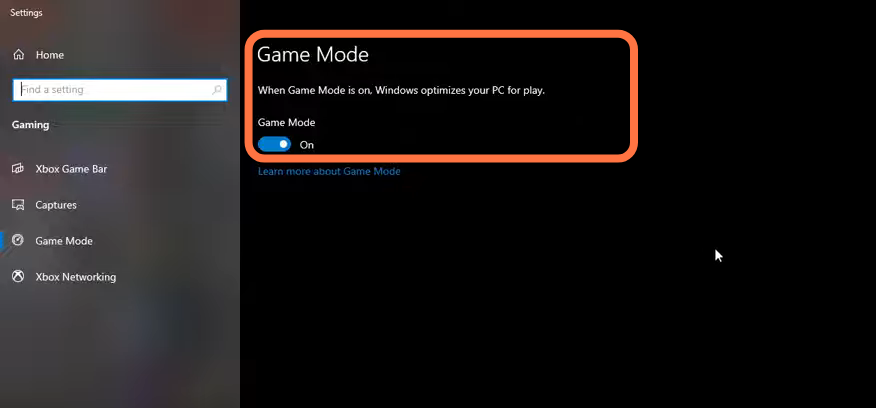
1.1 – First, search for Game Mode in the Windows search bar and press Enter. Make sure Game Mode is enabled so your system prioritizes game performance and focuses resources on the game you are playing.
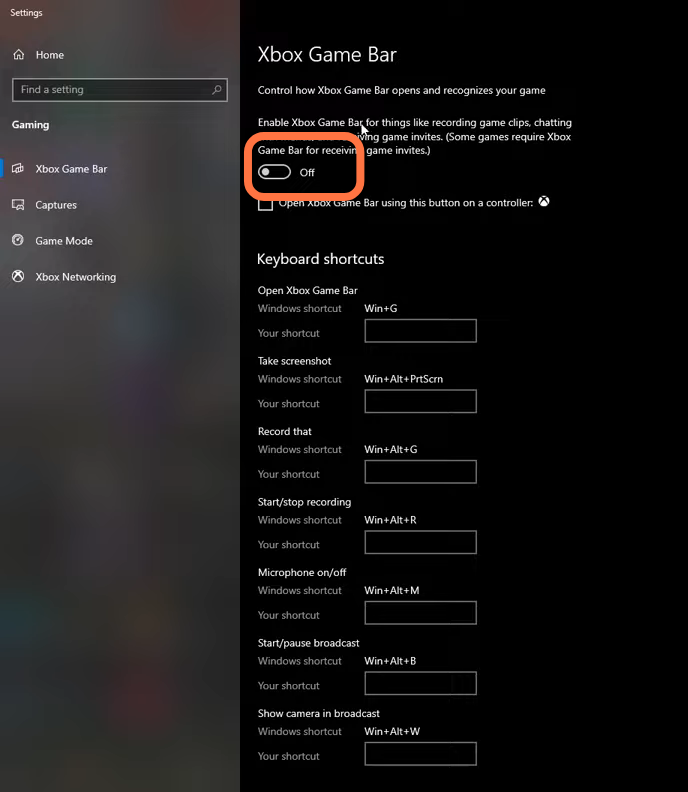
1.2 – Next, go to Xbox Game Bar under the Gaming settings and disable it. This feature can cause stuttering and crashes in some games.
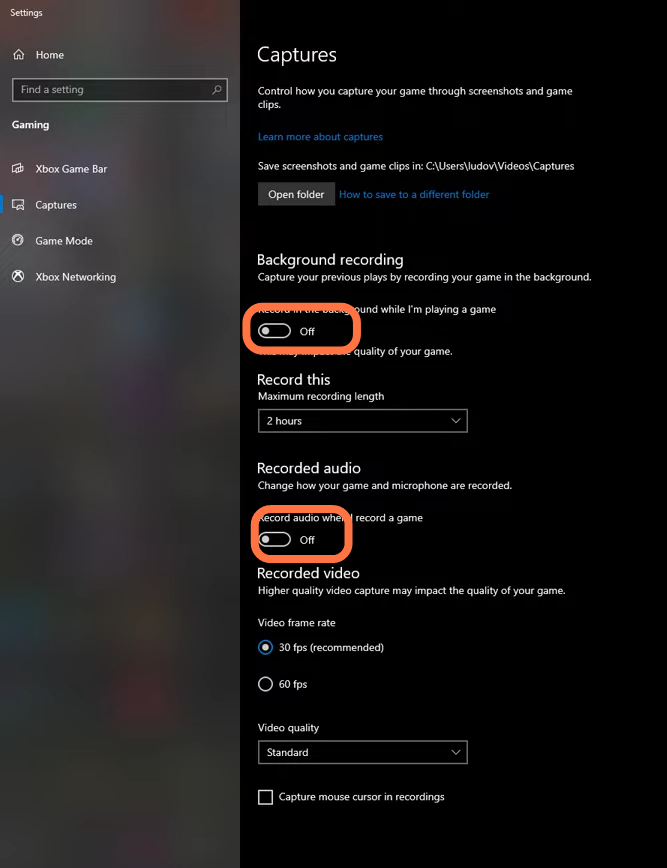
1.3 – Go to Captures under Xbox settings and make sure Background Recording and Audio Recording are turned off.
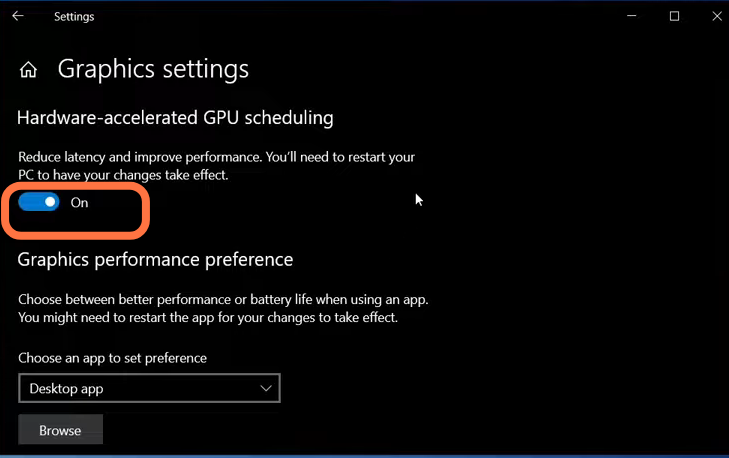
1.4 – Make sure the hardware-accelerated GPU scheduling option is enabled. This feature requires an NVIDIA 1000-series GPU or newer and can help reduce bottlenecks, providing a 2–5% FPS improvement.
1.5 – Ensure your GPU drivers are fully updated, as outdated drivers can negatively affect performance.
1.6 – Type power in the search bar and open Power Options. Make sure you are using the Balanced or High Performance power plan.

1.7 – Use Intelligent Standby List Cleaner if your PC has limited RAM. This tool frees memory and optimizes the standby list. Enter half of your total RAM in the free memory field, click Start, and minimize the program while it runs in the background.

In-Game Settings
Launch your game and open the settings menu.
2.1 – Navigate to the Basic settings. Disable camera vibration and skill animation effects to stabilize FPS and improve visual clarity. Then, enable the Show FPS option so you can monitor performance changes when adjusting settings.

2.2 – Open Display Settings and set the screen mode to Custom. Set Screen Wanderer to 14. In Advanced settings, set Texture Quality to Extreme if your GPU has 4GB or more VRAM. Adjust this based on your PC specifications. Set Material Quality to Medium for a small FPS boost and keep Vegetation Detail on Low.

2.3 – Set Anti-Aliasing to None for up to a 6% FPS boost. Unlock FPS to 120 if you use a high refresh rate monitor. If you are playing on a laptop with thermal limitations, cap FPS at 60 for stability. Disable shading on older or integrated GPUs. On mid-range systems, keeping shading off is recommended, as it can reduce FPS by around 2%.
