Minecraft Has Not Started Because Of An Unknown Error - TLauncher
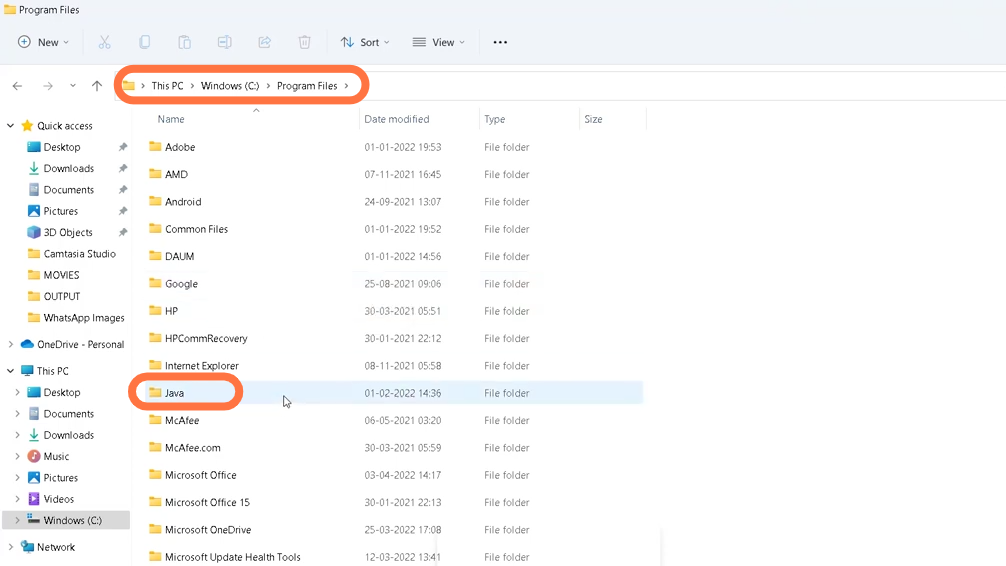
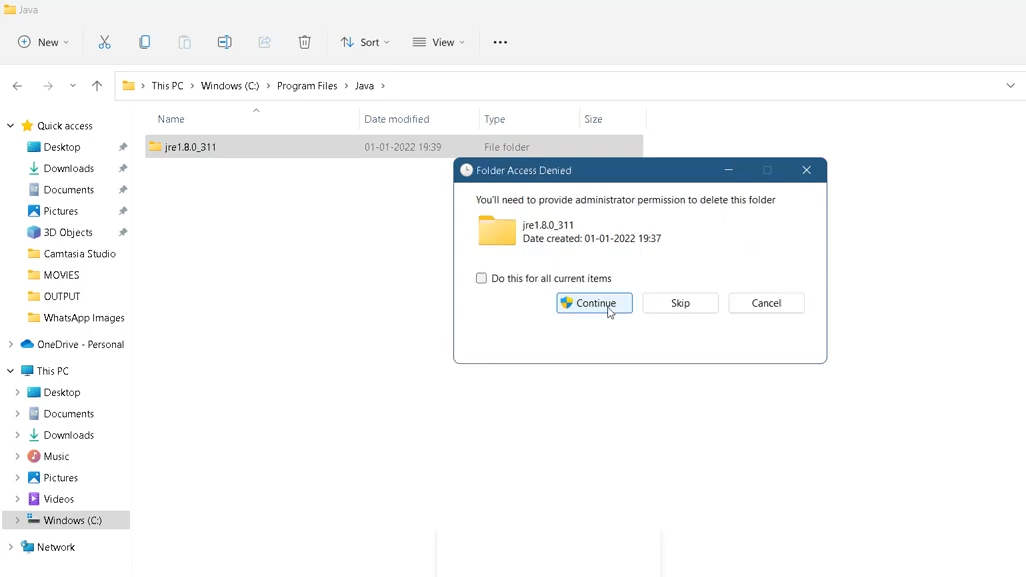
- Now select the jre1.8.0_311 folder inside this java folder to delete it
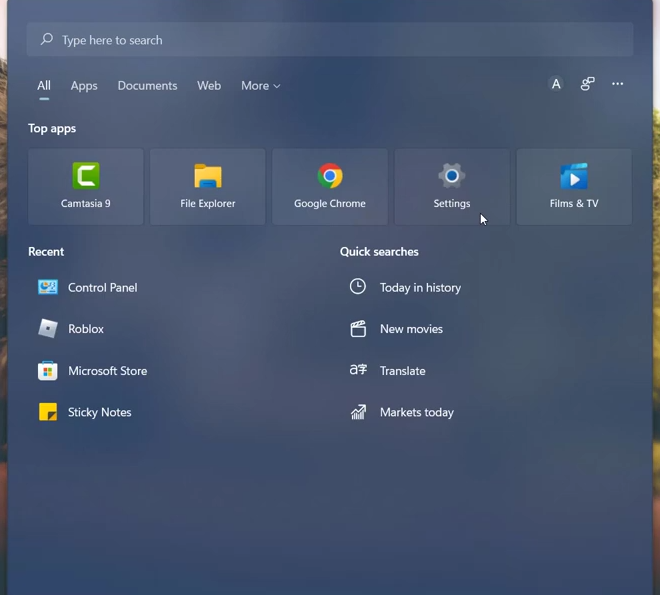
- Now open settings
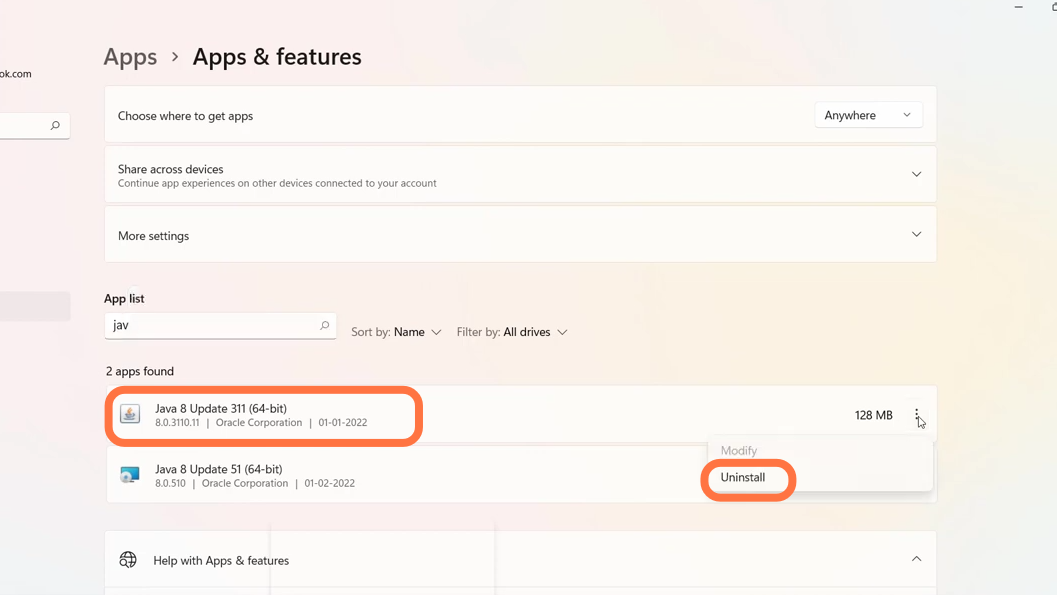
- Enter into apps and then choose apps and features and search ‘Java 8 update 311 (64-bit)’ to uninstall it
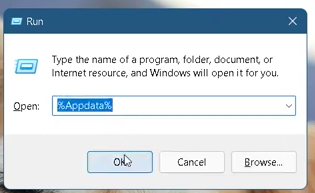
- Now press Windows + R keys to open the Run dialog box and enter %Appdata% in the input field and press ok
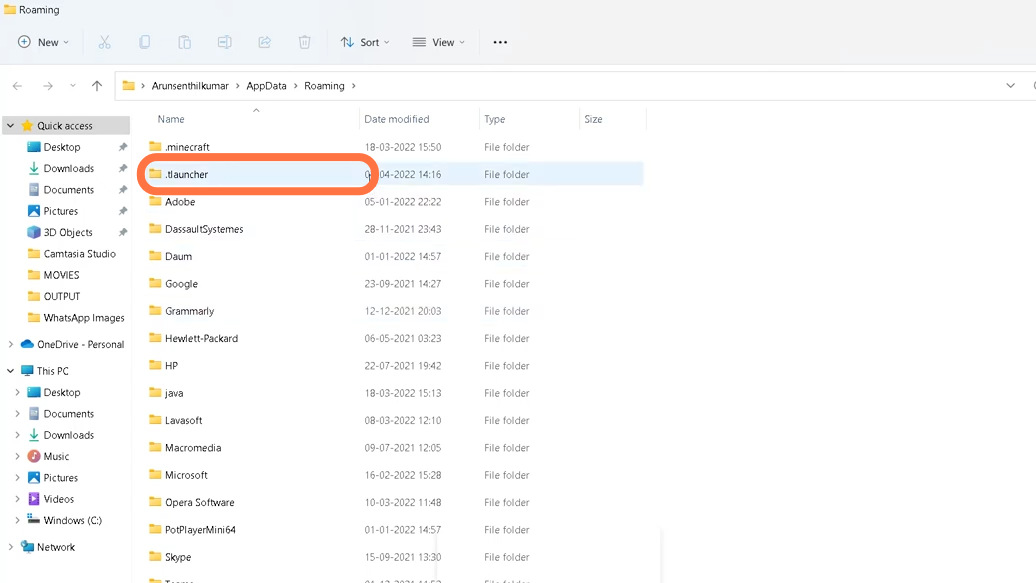
- Once this folder opens enter into .tlauncher
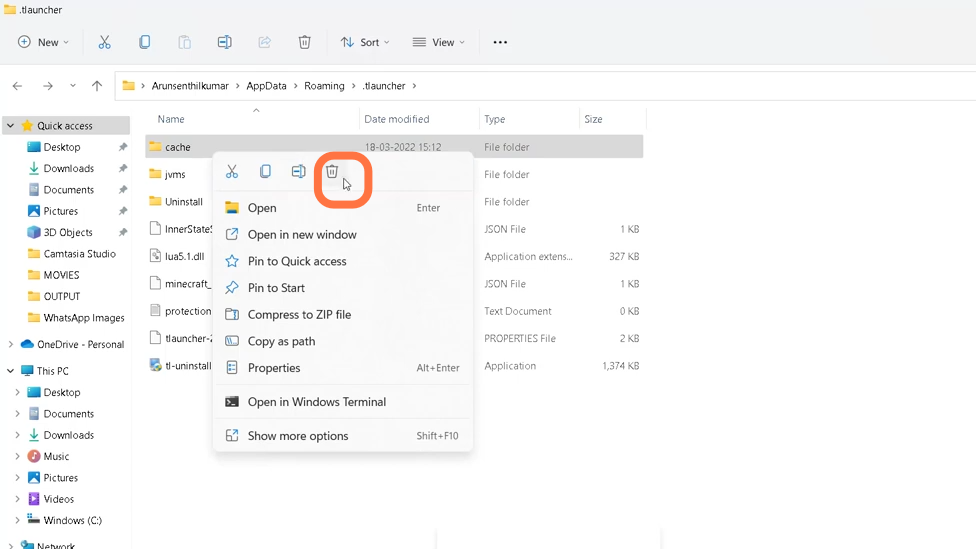
- Find the Cache folder inside .tlauncher and right click on it to delete it
- Now it's time to restart your PC. After that open google chrome and download java for Minecraft
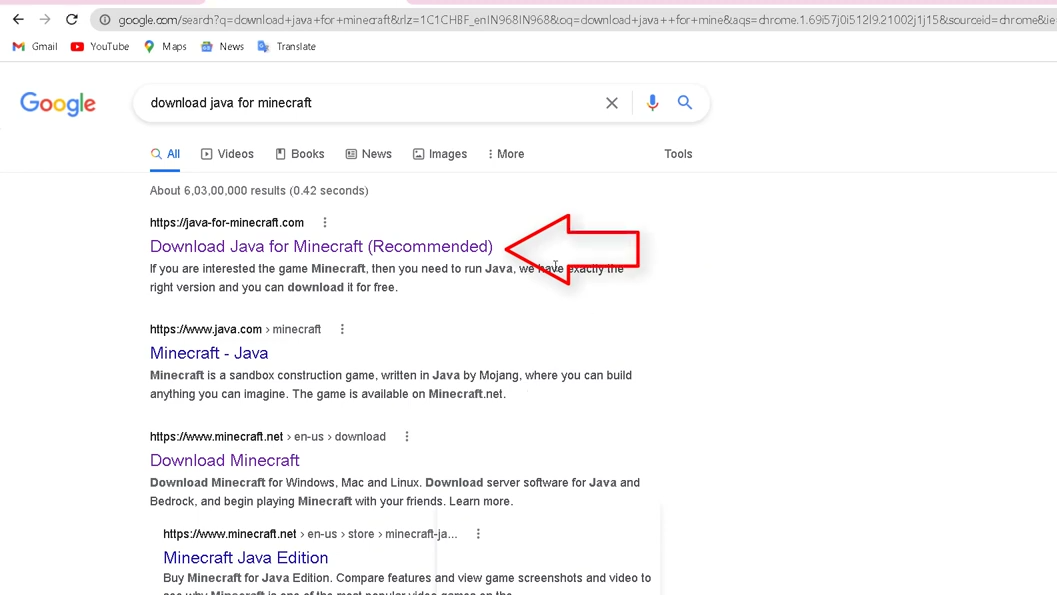
- Choose the java version which is compatible with your operating system.
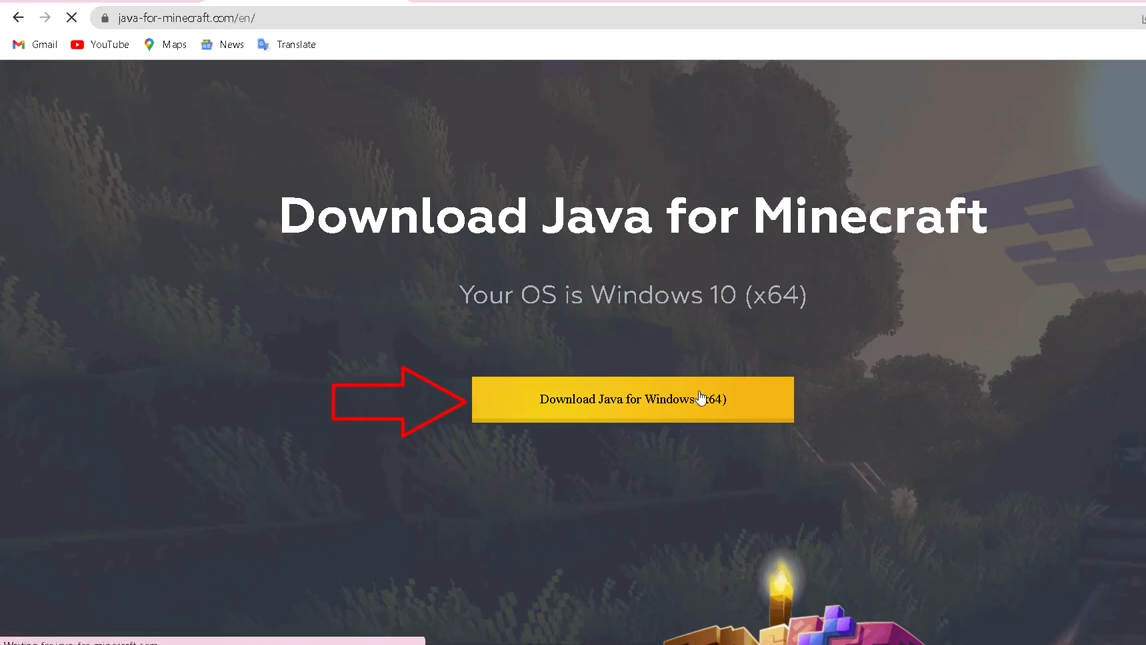
- Once downloaded, Open java for windows (x64) and install it.
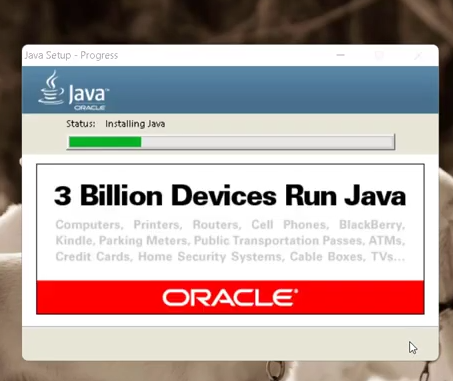
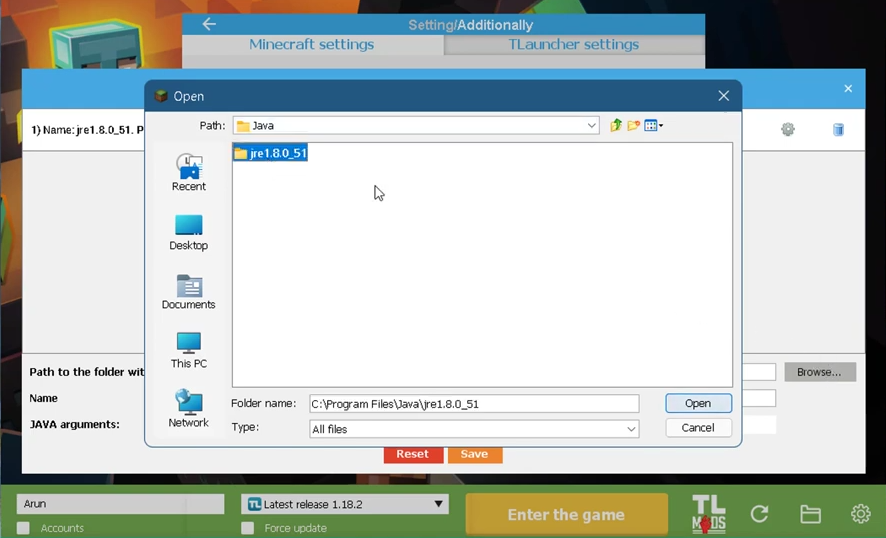
- Now after installing the java Exe file, open Tlauncher and enter into settings at the bottom right of the screen, click on the change tab, and then on browse.
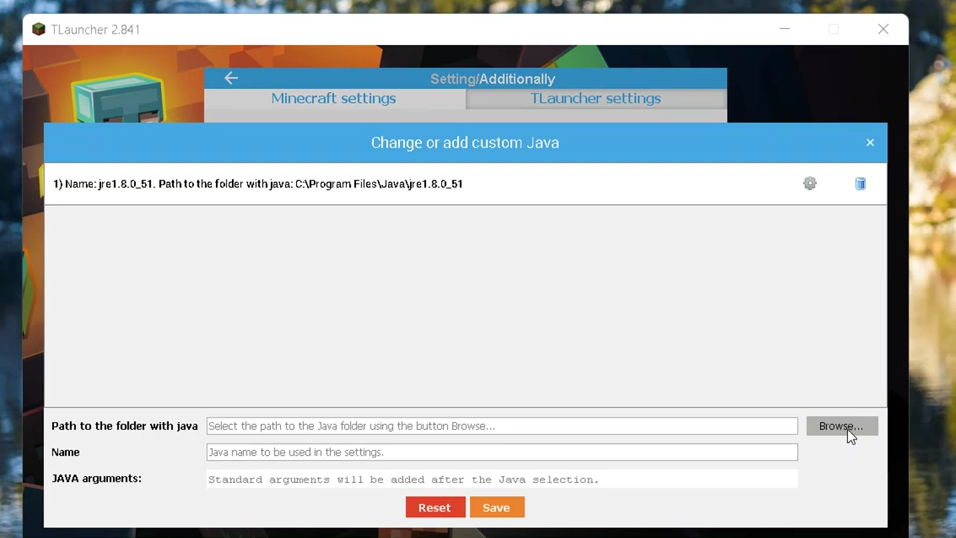
- Now select the folder named ‘jrer 1.8.0_51’ and open it then click on save. After that restart your PC and hopefully, the issue will be resolved.