How to Make Pants In Roblox Using Customuse
In this guide, you will learn how to make pants in Roblox. By following the steps below, you can create pants using Customuse and then upload them to the Roblox Creator Hub.
Create your pants
This section walks you through the steps to create your pants on Customuse.
- First, go to Customuse and click on Get Started for free. Sign up or log in to your account. Click the Discover tab on the left side, where you will find some Pro pants. To access them, you need to upgrade your account.
- You can also choose a free template. Click on any template, select pants, and press the Remix button.

- The preview will load, allowing you to make edits. Scroll through the accessories and media options to apply them to your character. Click any item and adjust it as needed.
- You can also use the AI media tool to generate images for your clothes, or go to the Upload section to upload your own image. To add text, use the Text section.
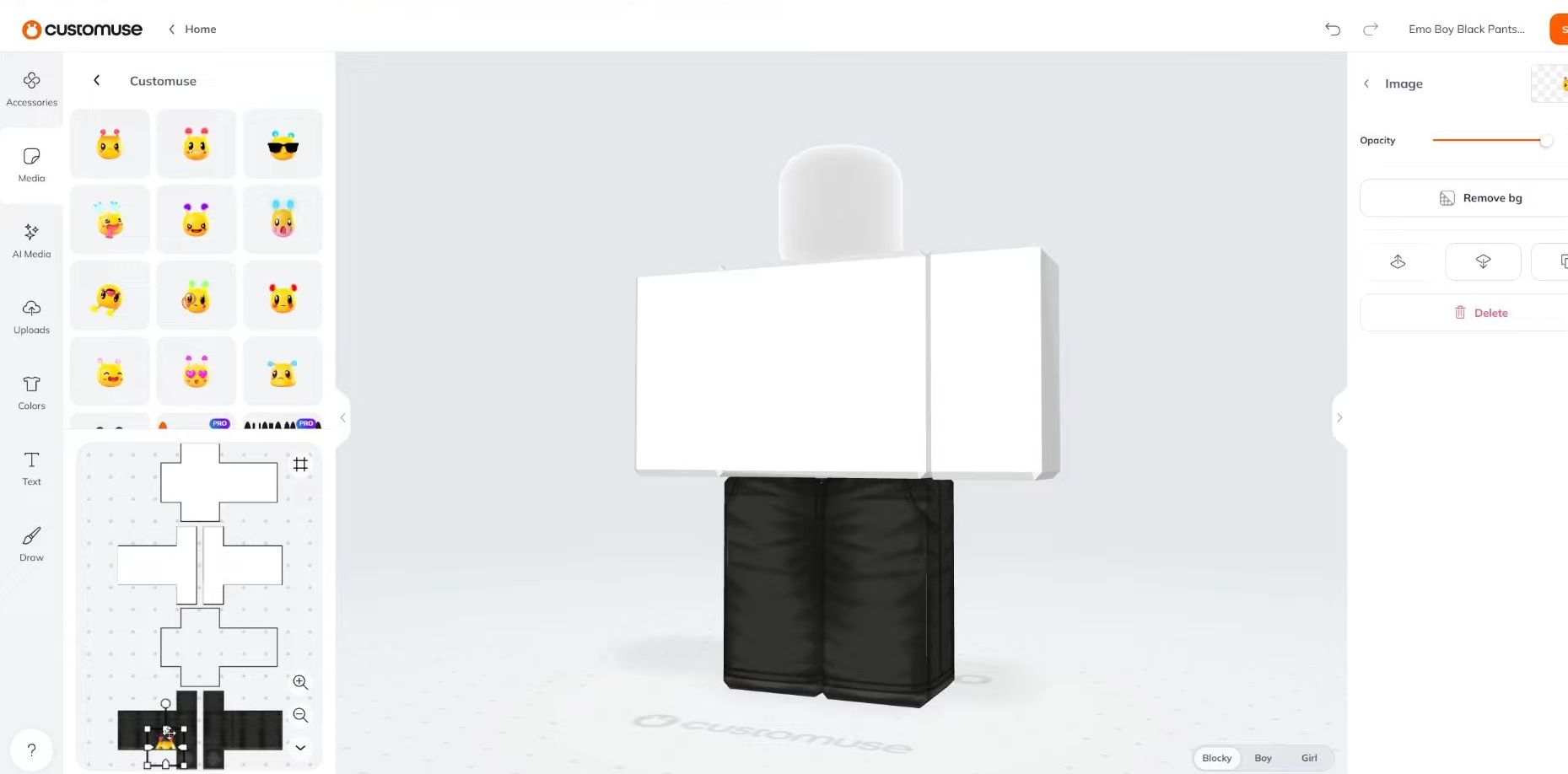
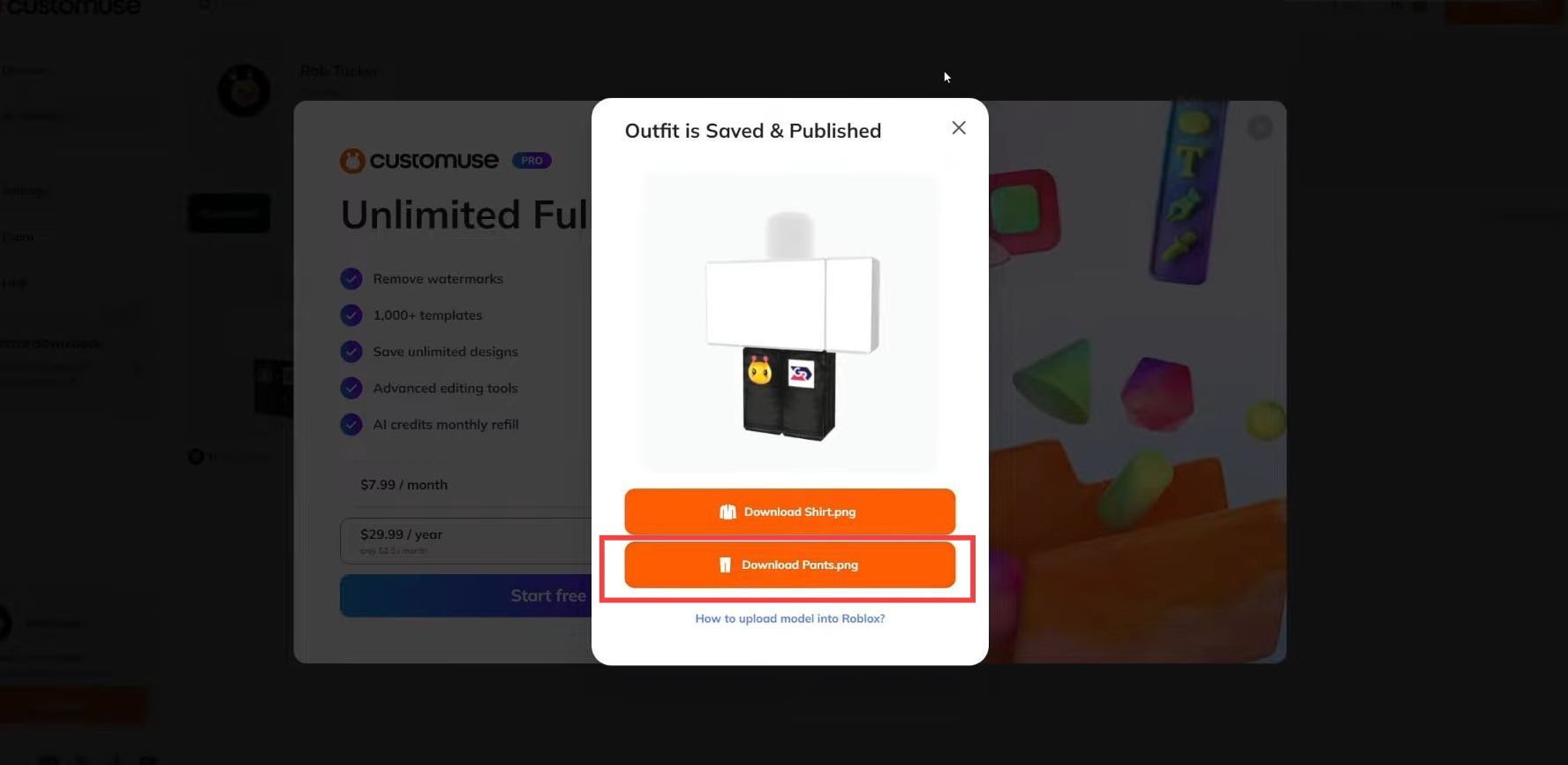
- Once you are done making changes, click the Save & Publish button in the top-right corner.
- A window will appear. Click Download Pants.
Upload the pants
This section explains how to upload the pants after creating them. Once uploaded, you can view them in your Avatar section.
- Go to the Roblox Creator Hub and navigate to the Creations tab on the left. Click Avatar Items and select the Classic Pants filter.
- Click the Upload button, locate the pants file in your file explorer, select it, and click Open. Name your pants and spend 10 Robux to upload them.

- Go to Roblox and click Avatar on the left side.
You will find your newly created pants in the Recent tab.