How to Fix Origin Network Connection Problem
The Origin Network Connection problem in Windows occurs because of multiple reasons. The most common reason is a problem with your network connection.
You have to follow the step-by-step instructions to get rid of this problem.
1. You will need to search for the command prompt and click on "run as administrator".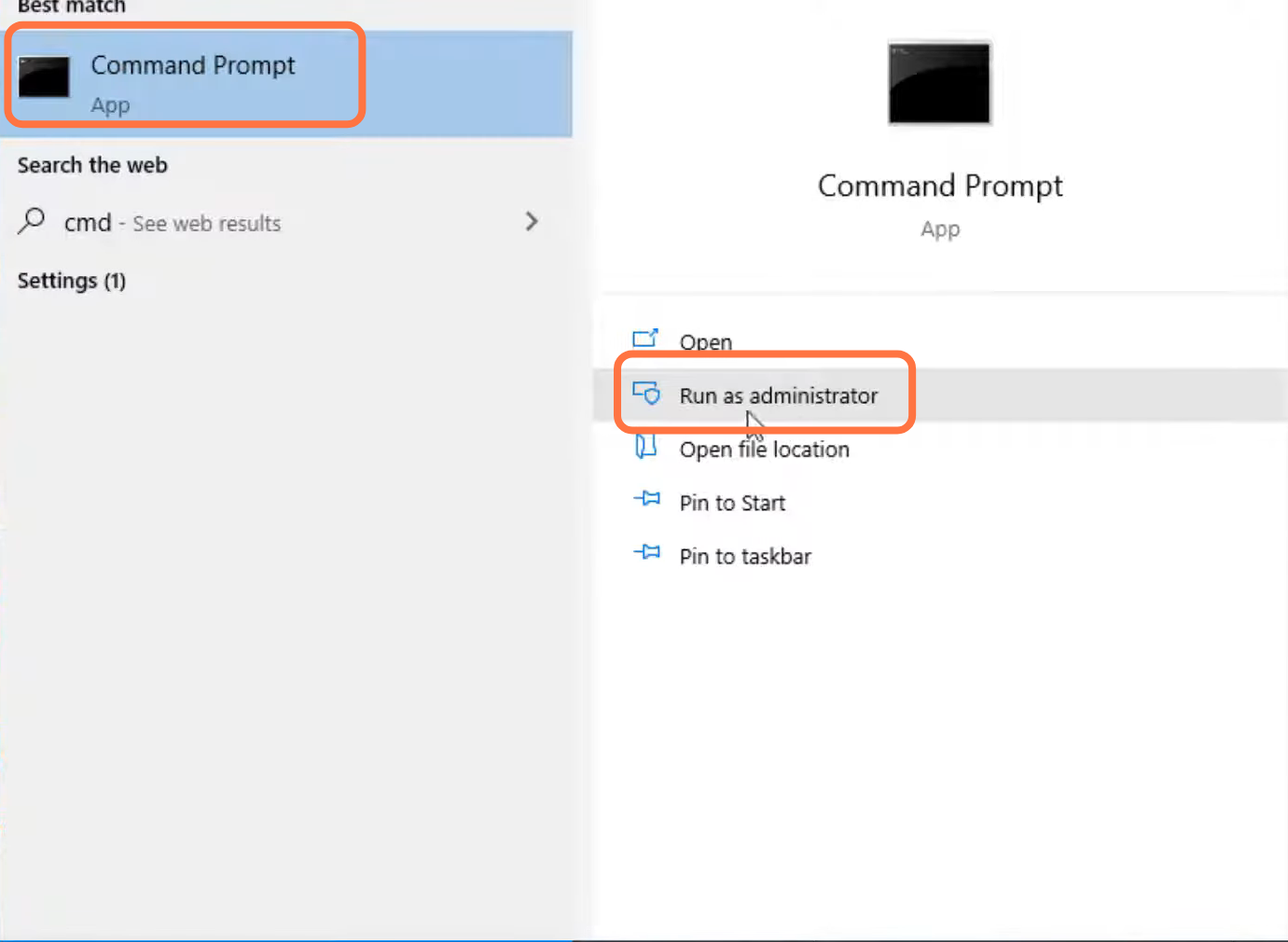
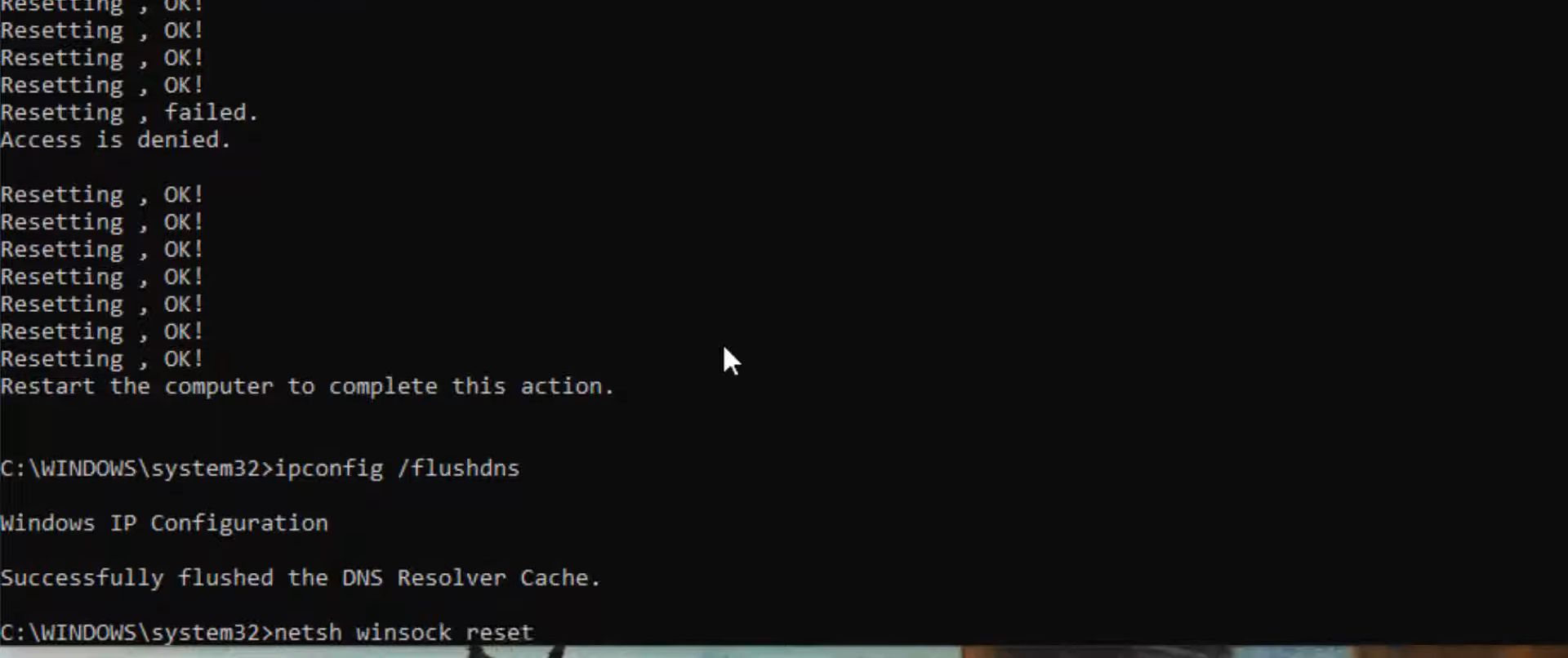
- Type "netsh int ip reset C:\resetlog.txt" and press the enter button.
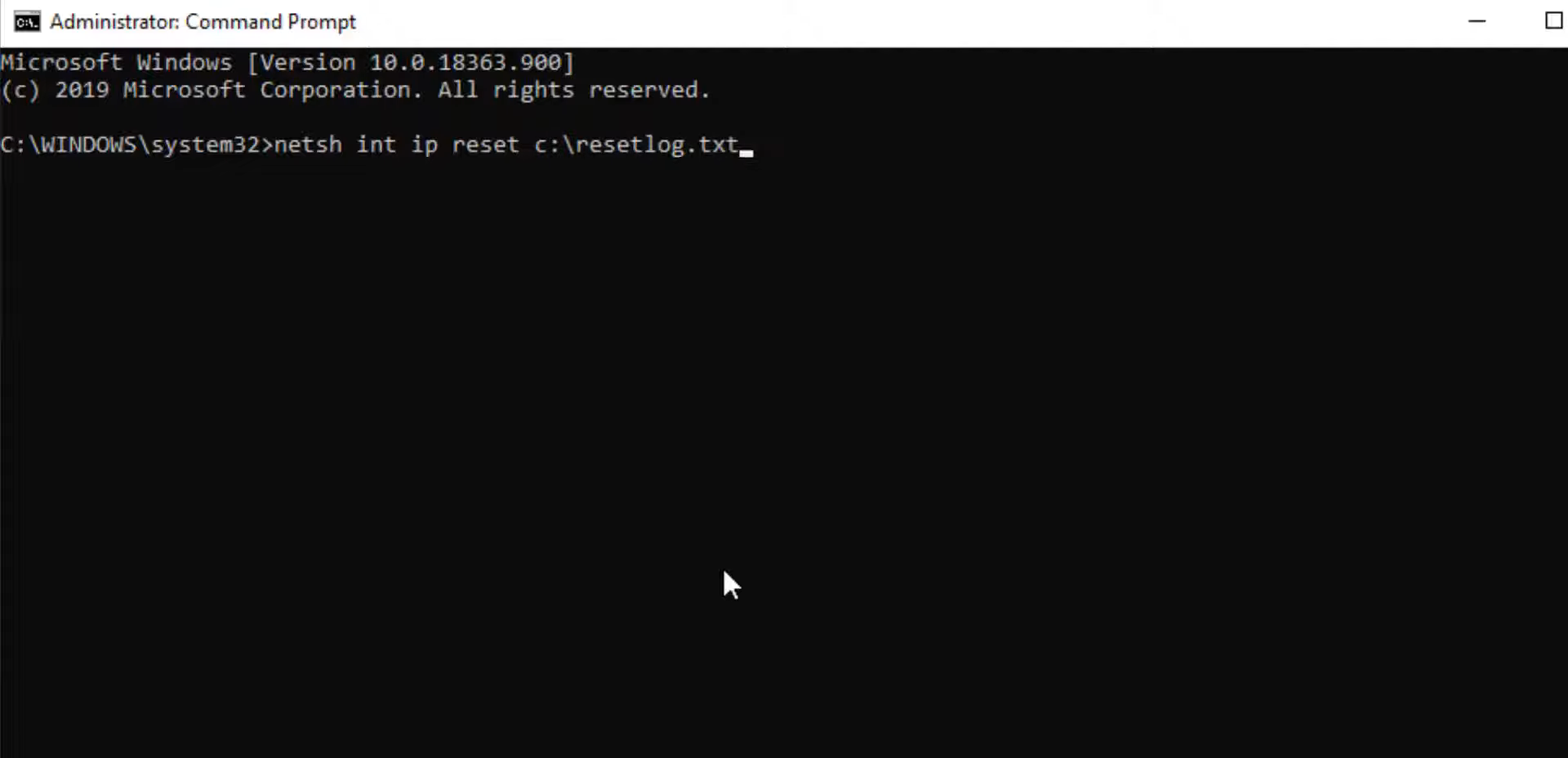
- After that, type ipconfig /flushdns and press enter button.
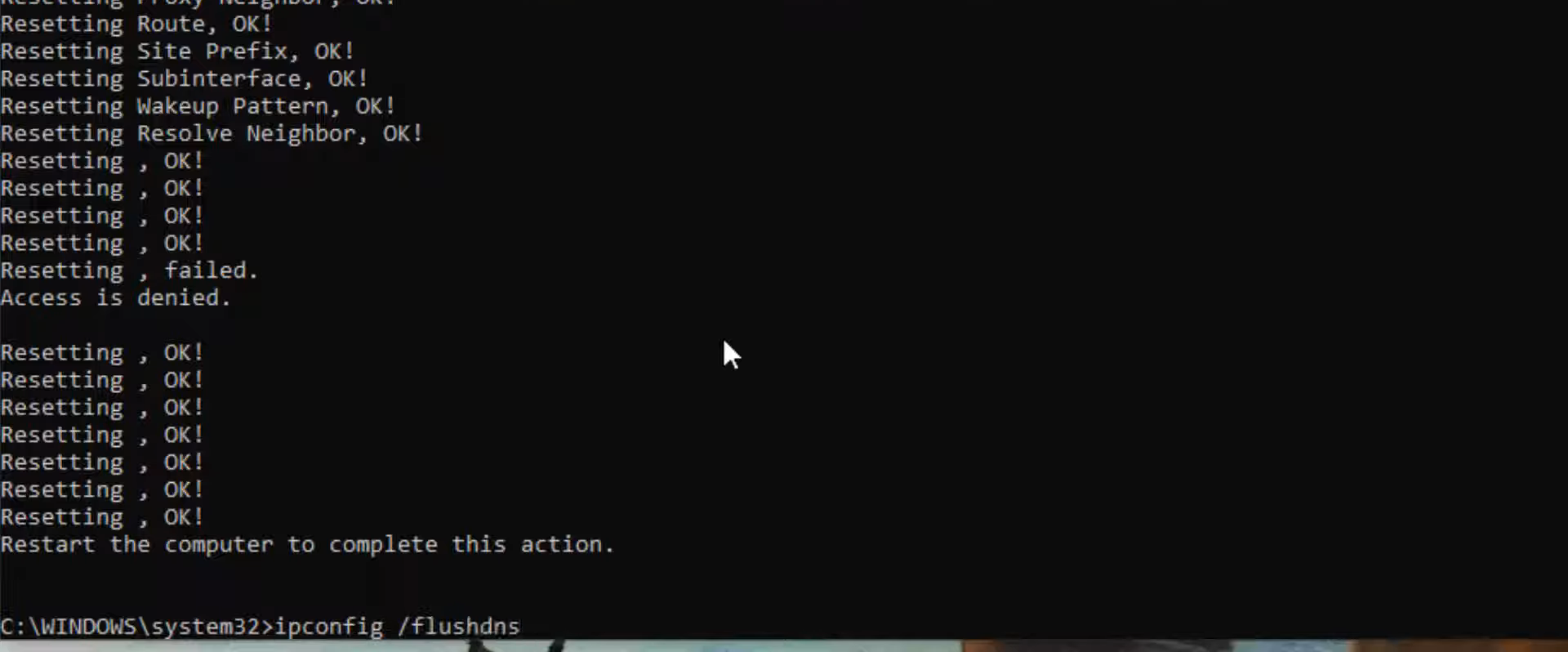
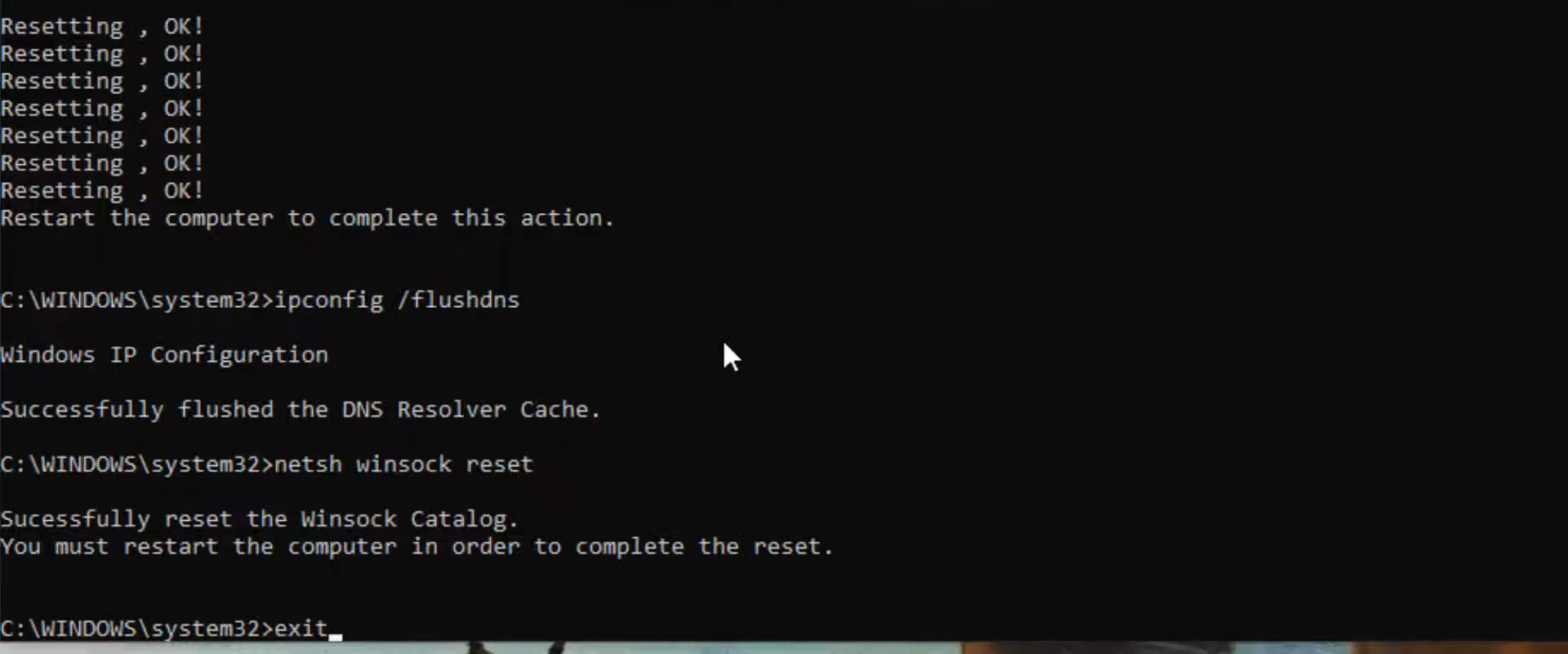
- Then you need to type "netsh winsock reset" and hit the enter button to execute the command.
- Type "exit" and press enter to close the cmd interface.
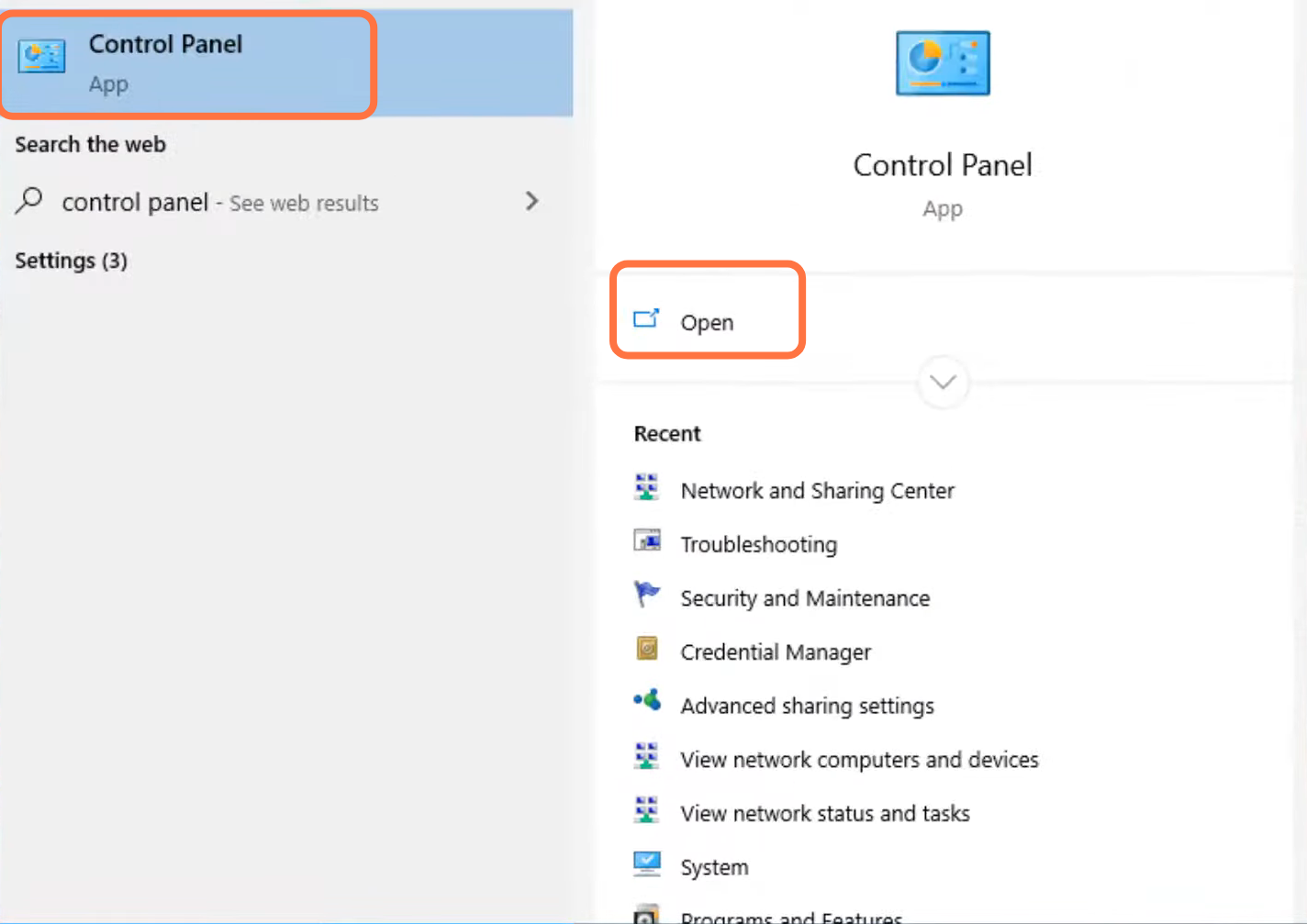
- Next, you will need to open up the control panel.
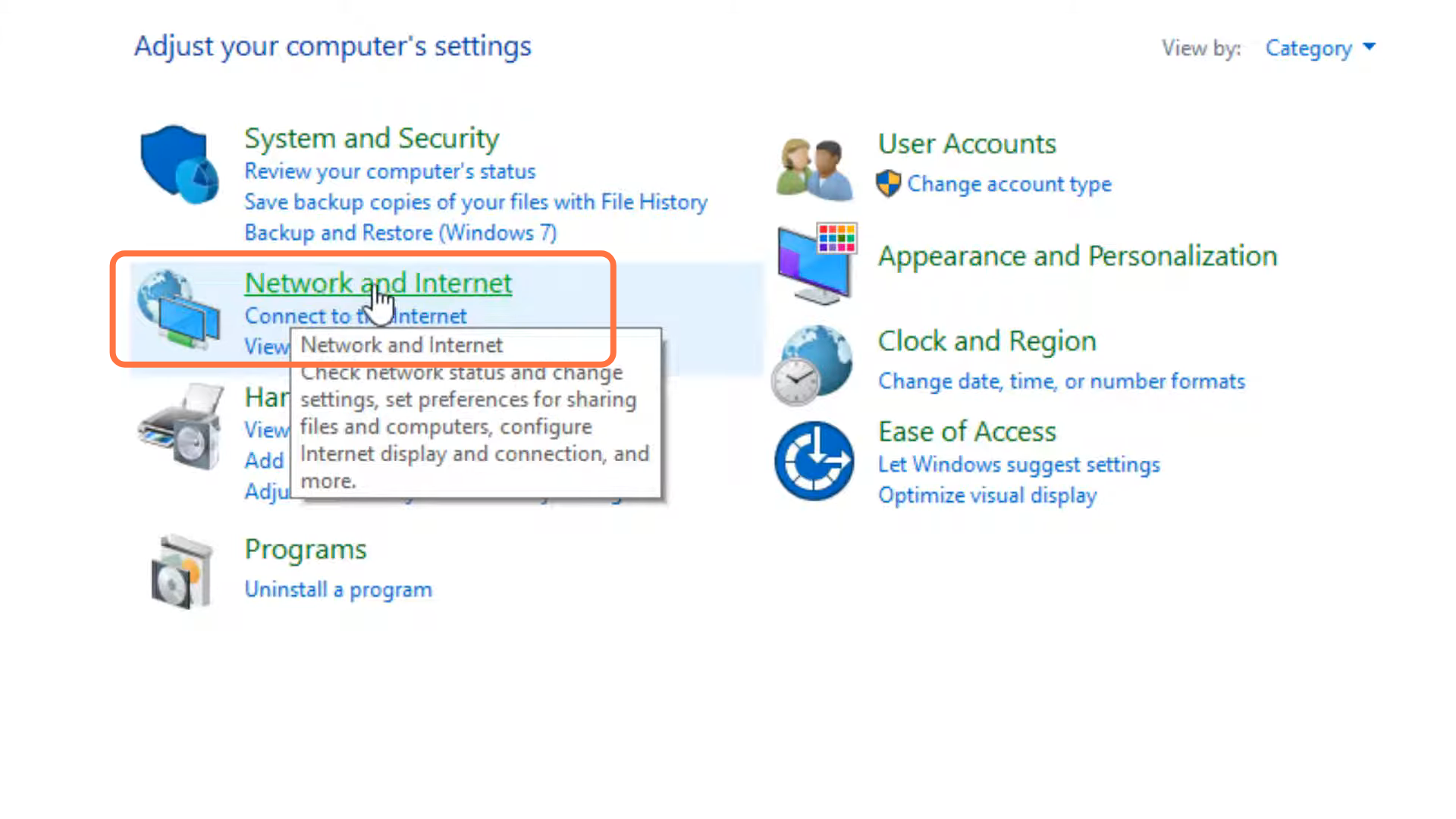
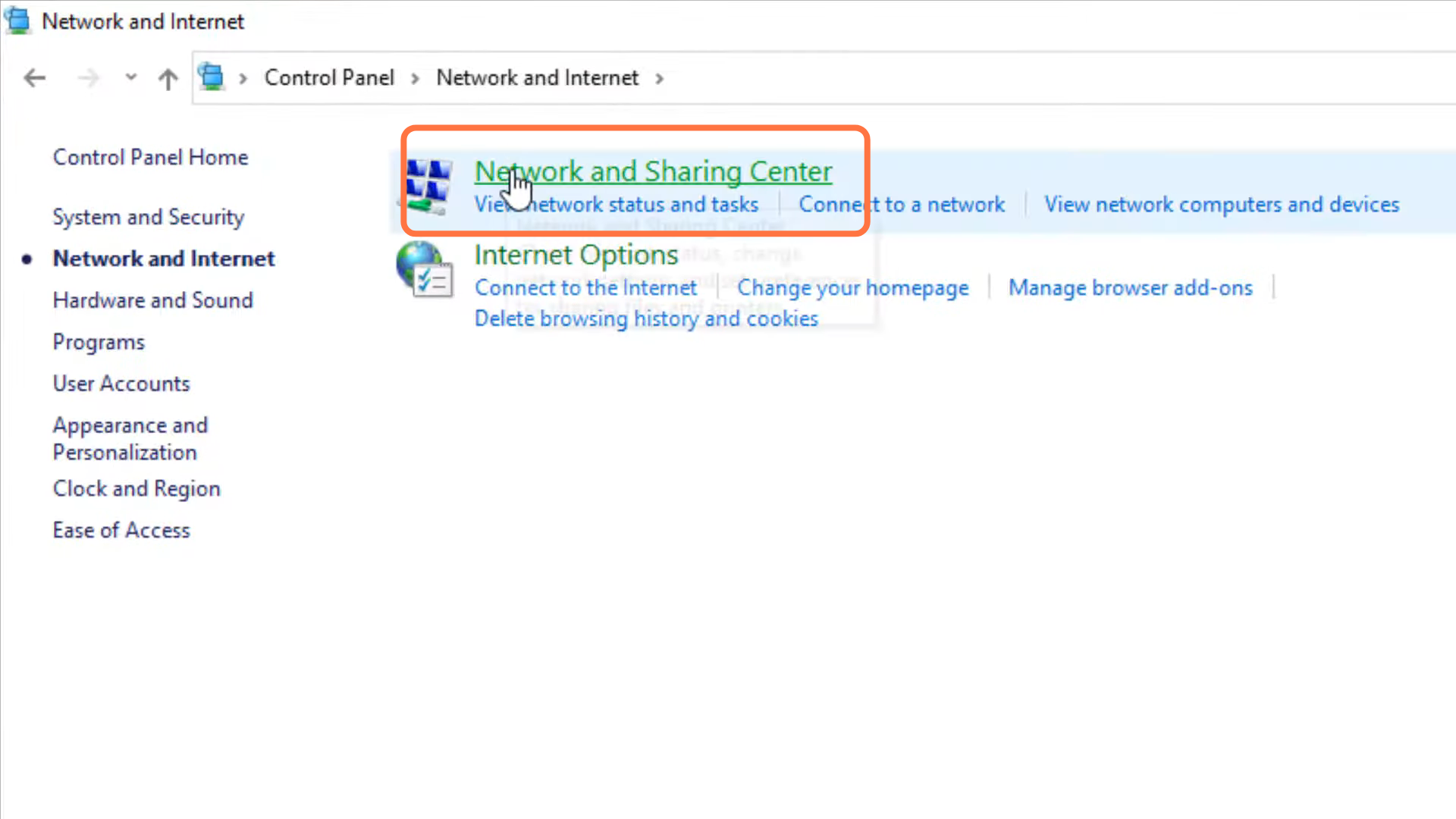
- Enter into Network and Internet.
- Navigate to Network and sharing center.
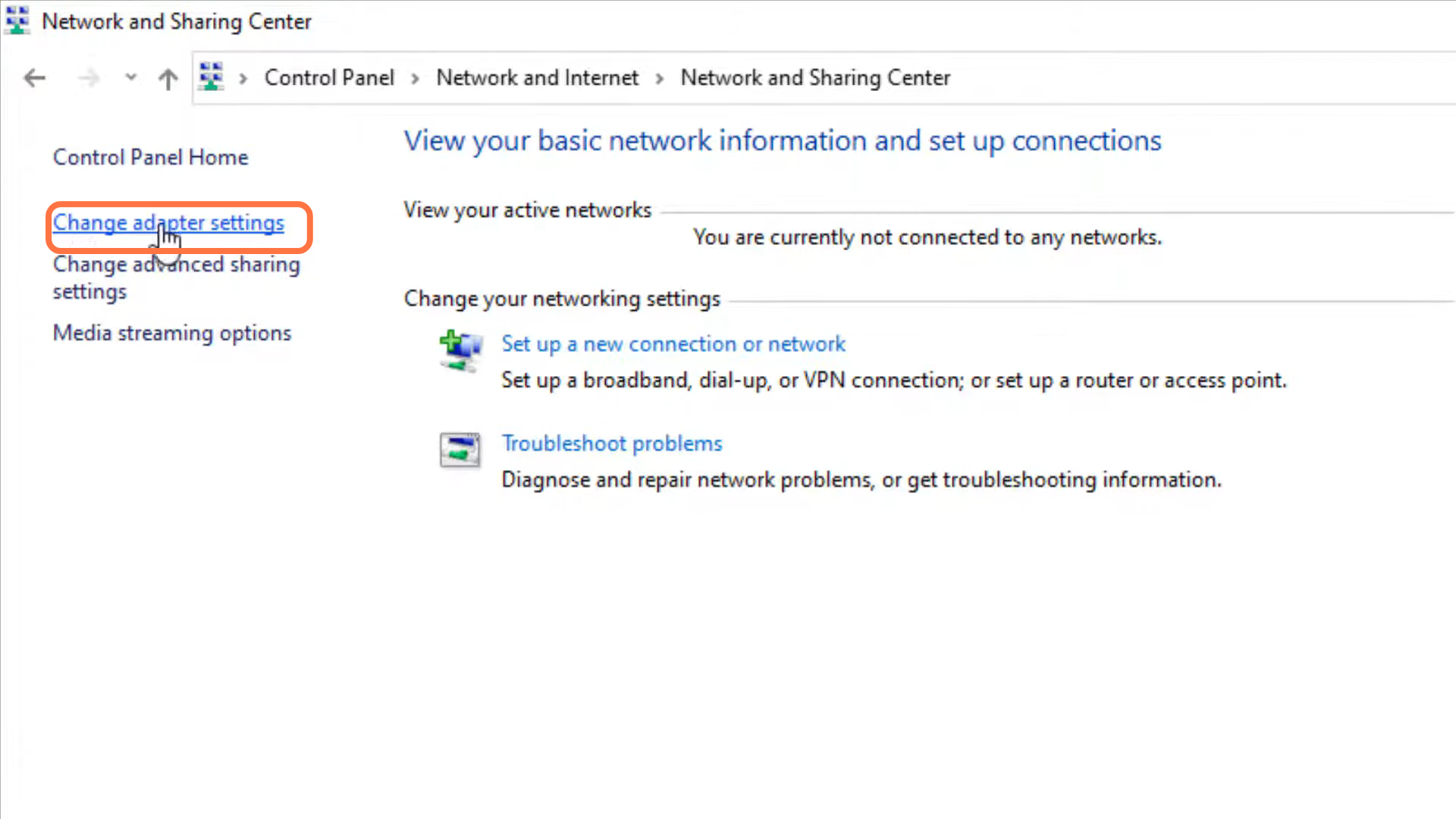
- And then tap on "Change adapter settings".
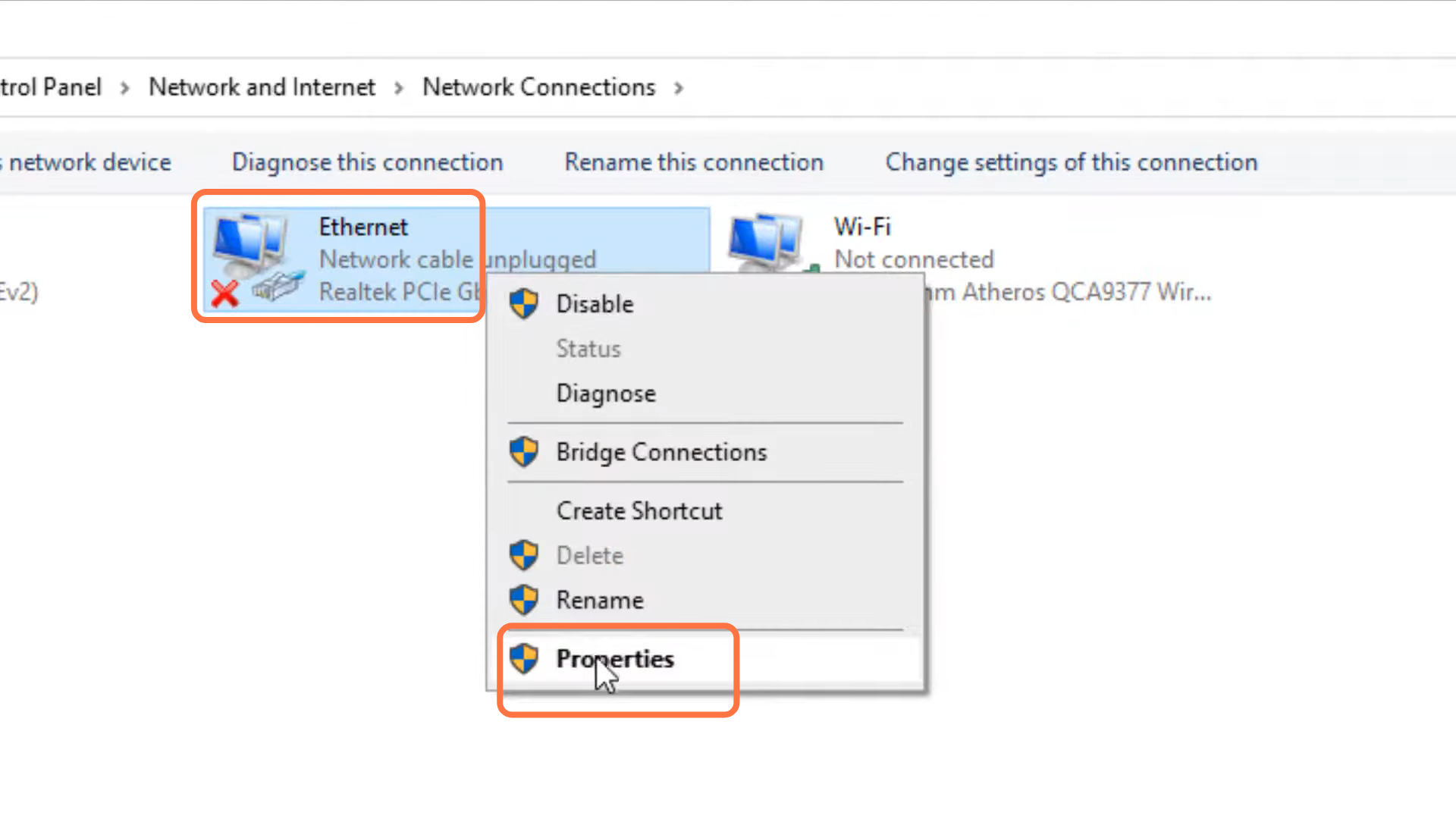
- After that, you have to left-click on ethernet and go to its properties.
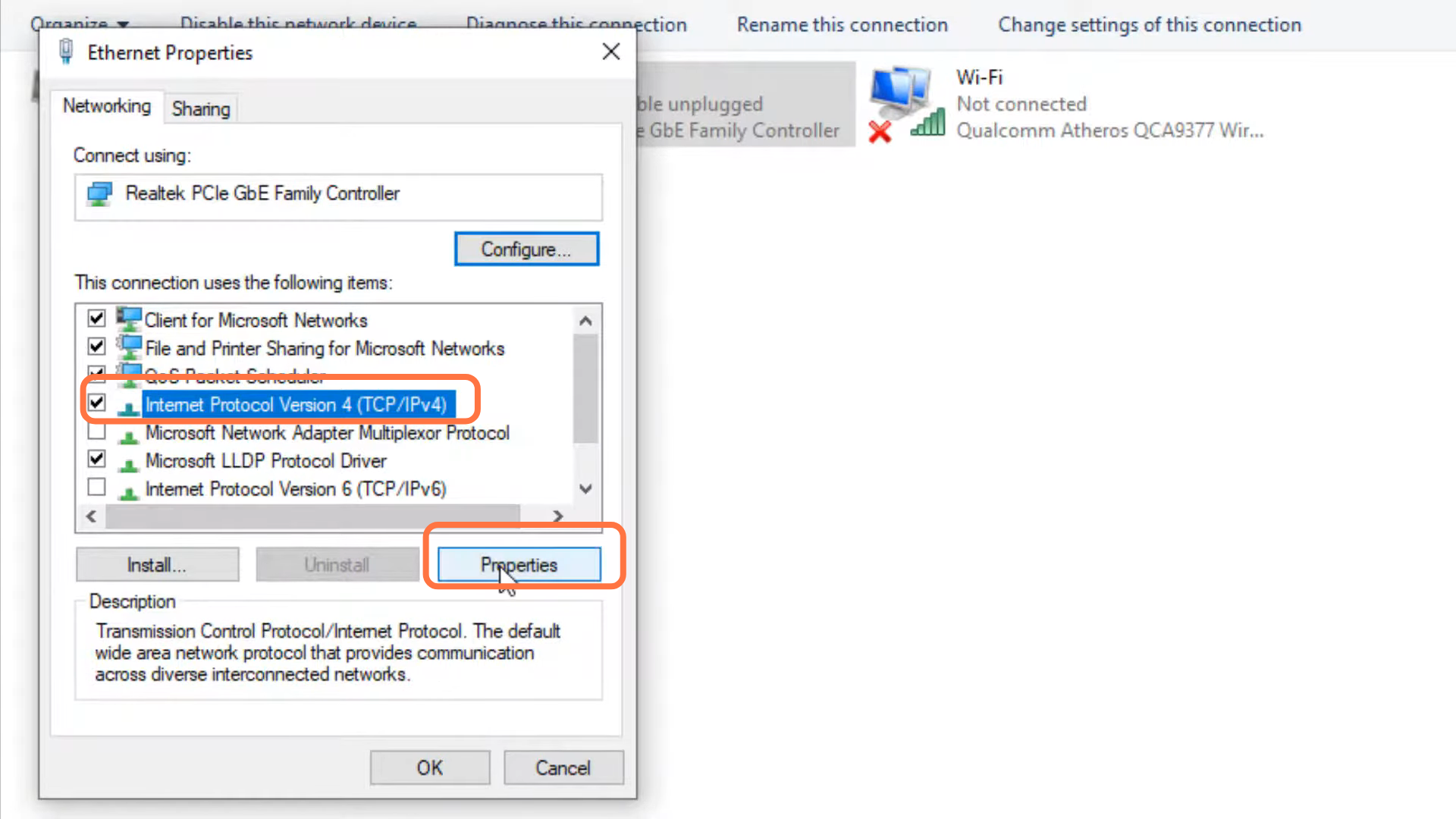
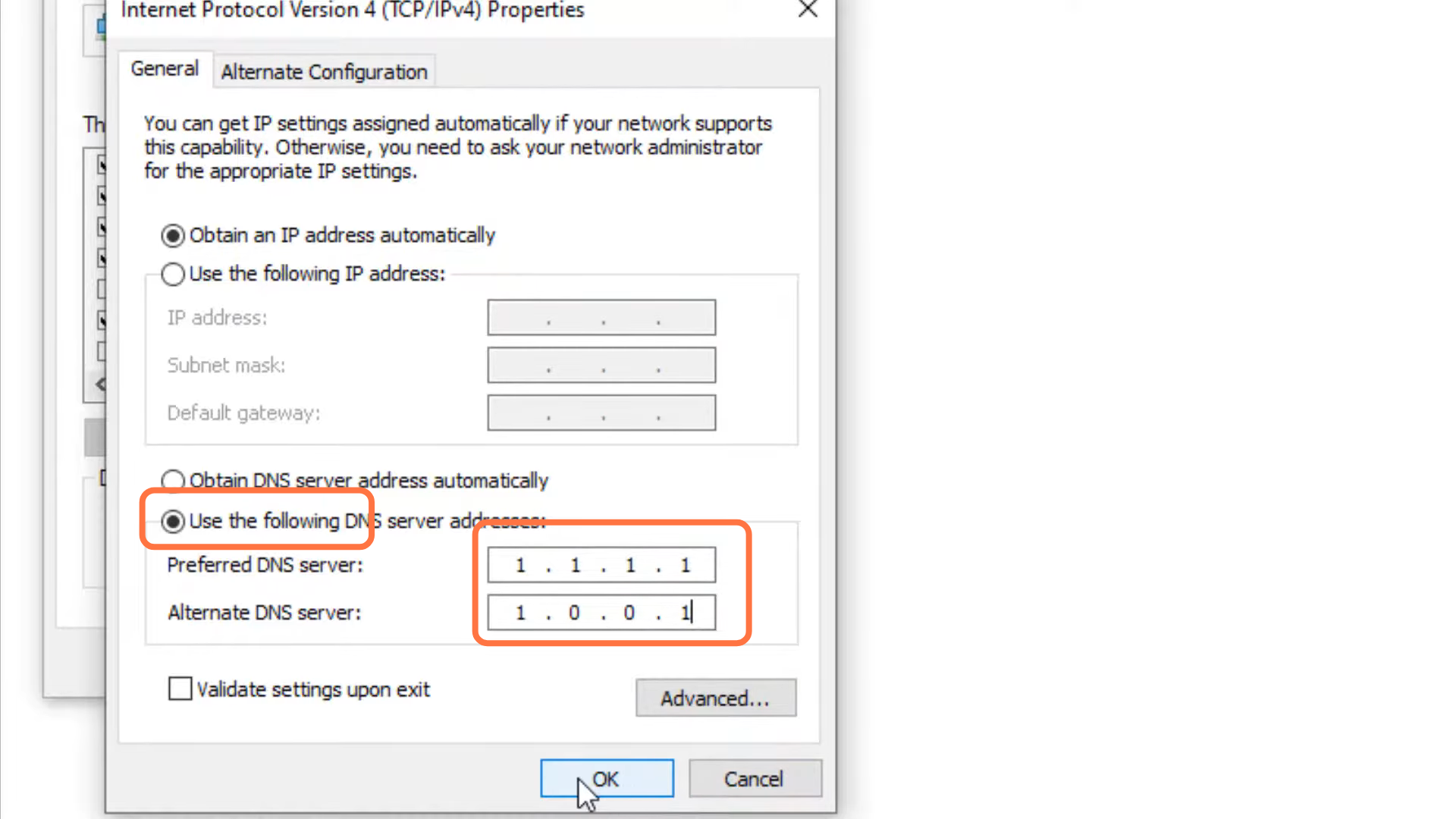
- Select protocol version 4 (TCP/IPv4) and click on properties.
- You will need to enable the DNS server, type 1.1.1.1 in "Preferred DNS server" and 1.0.0.1 in "Alternate DNS server", and press OK.
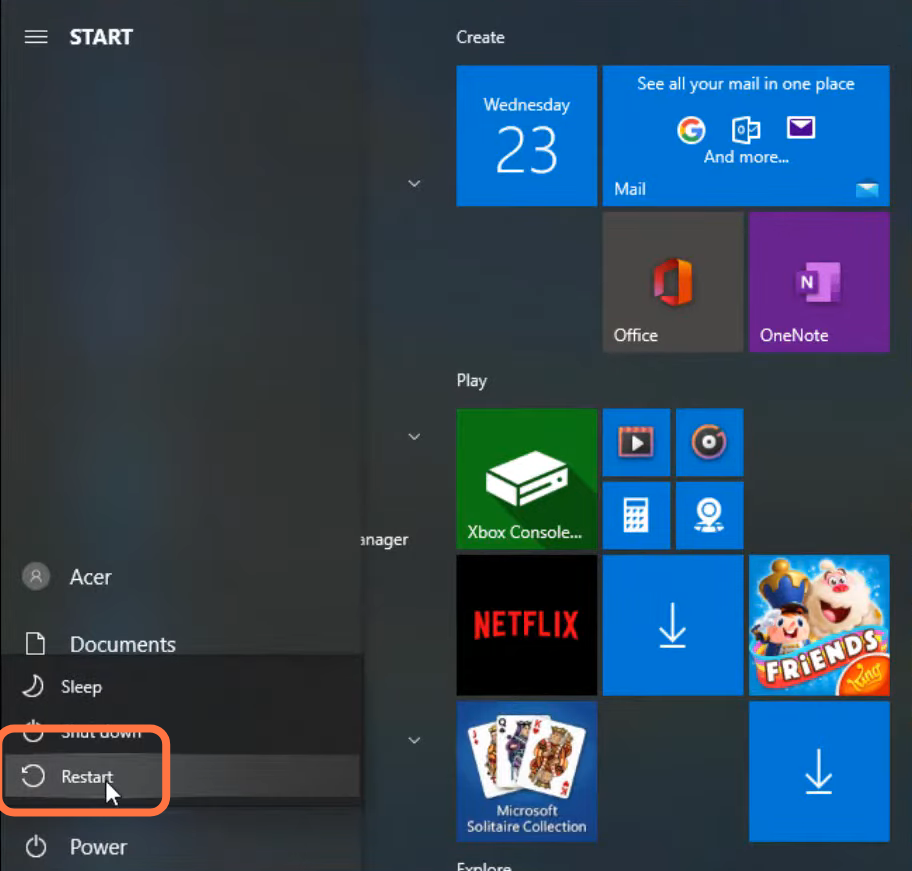
- Finally restart your PC to check if the error is resolved.