How to Fix Minecraft Launcher Is Currently Not Available (0x803f8001)
You need to follow all the instructions carefully to get rid of this error.
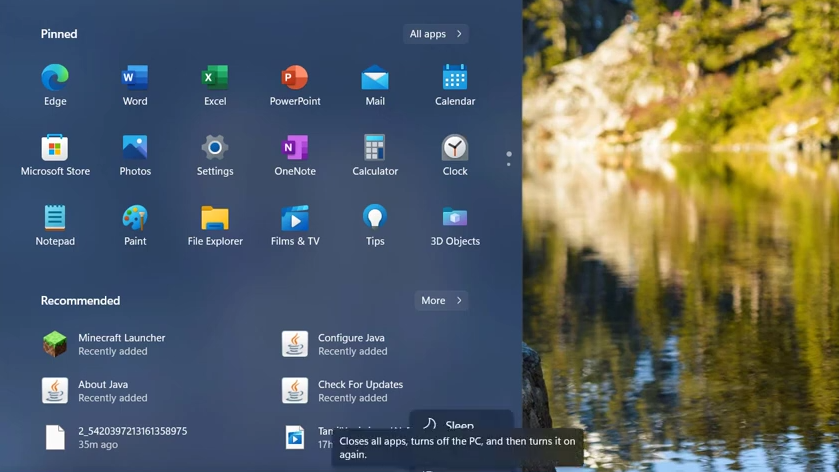
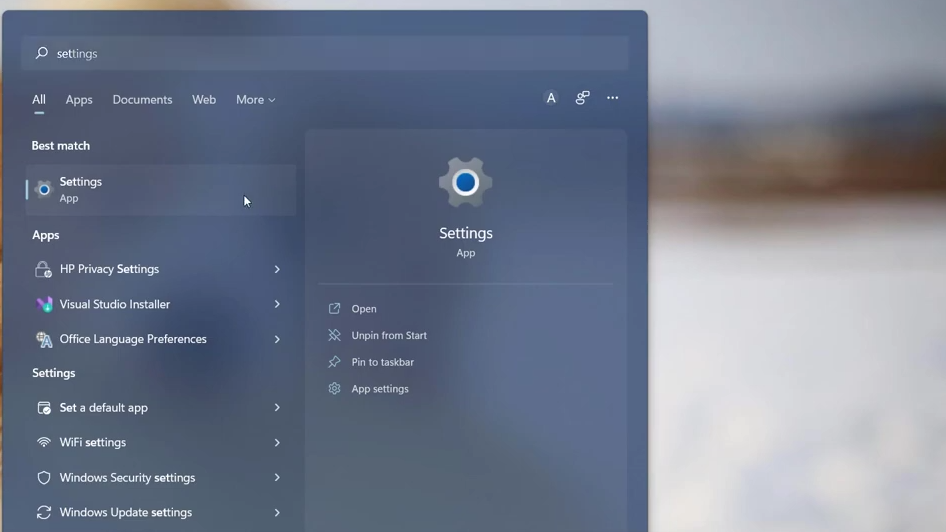
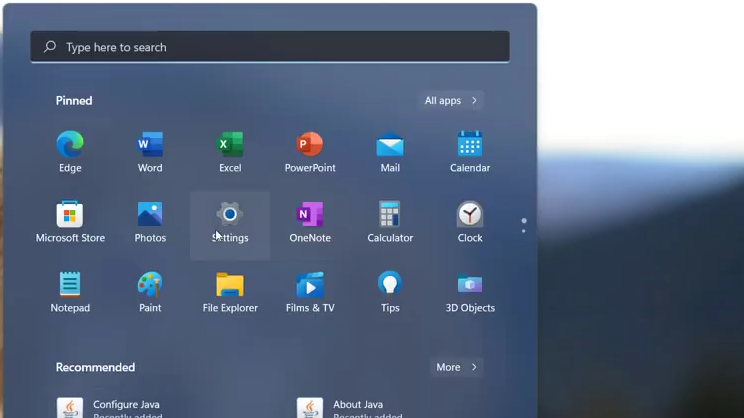
- First, you will need to open the settings.
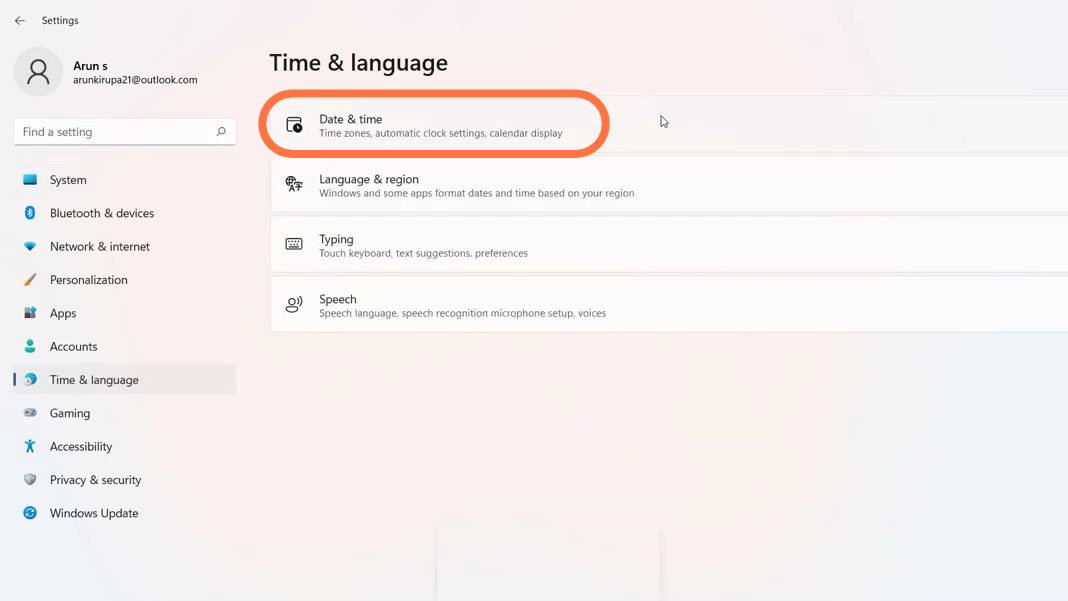
- Select the time & language option from the list and then click on the date and time option.
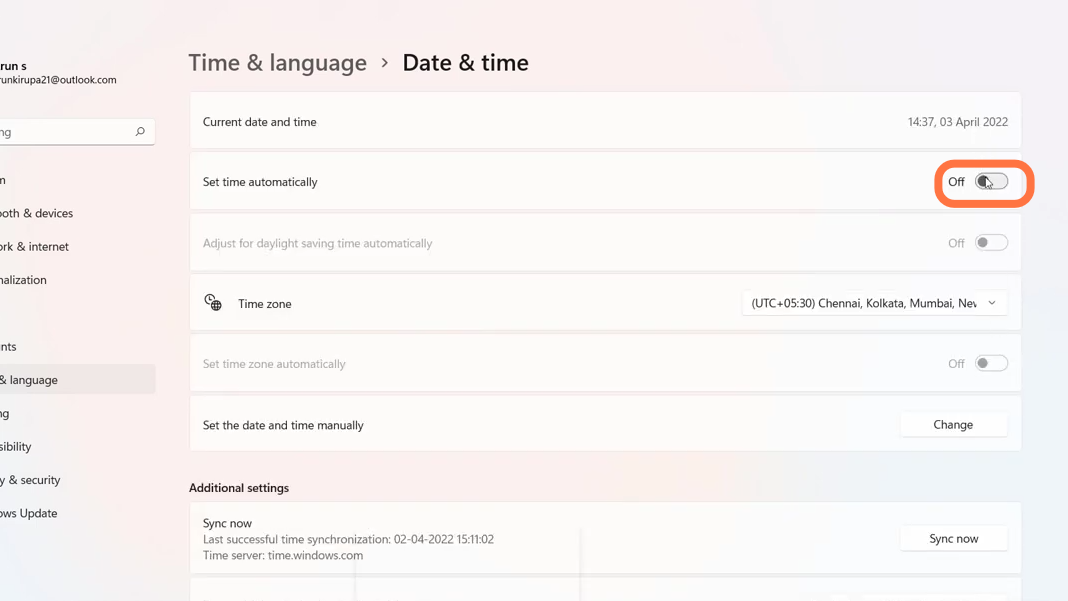
- After that, enable the "set time automatically" option and then change your time zone accordingly.
- Then you have to open the settings once again.
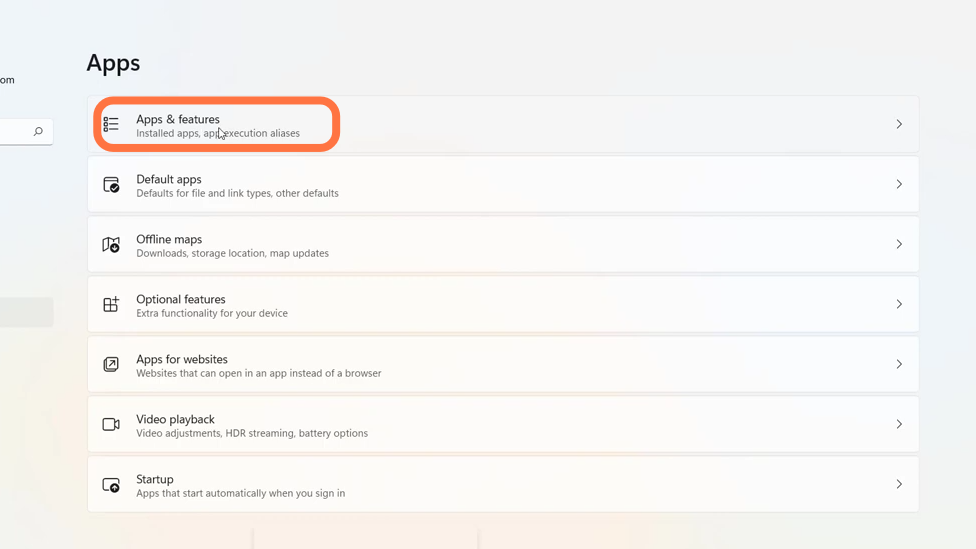
- Select apps in the settings and click on the "apps and features" option at the top.
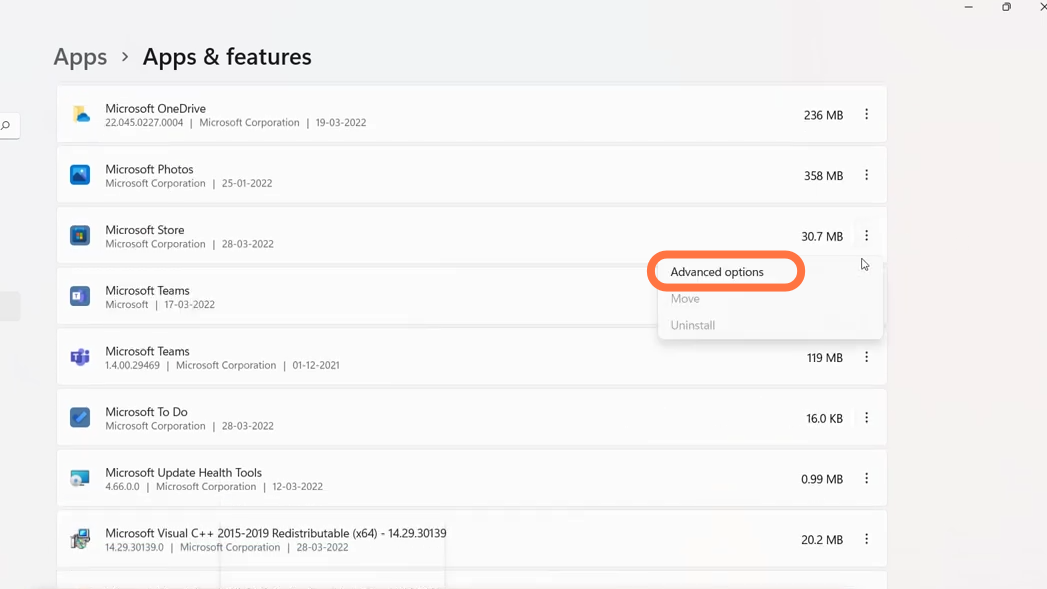
- Search the Microsoft store app and click on the dotted bar to select advanced options.
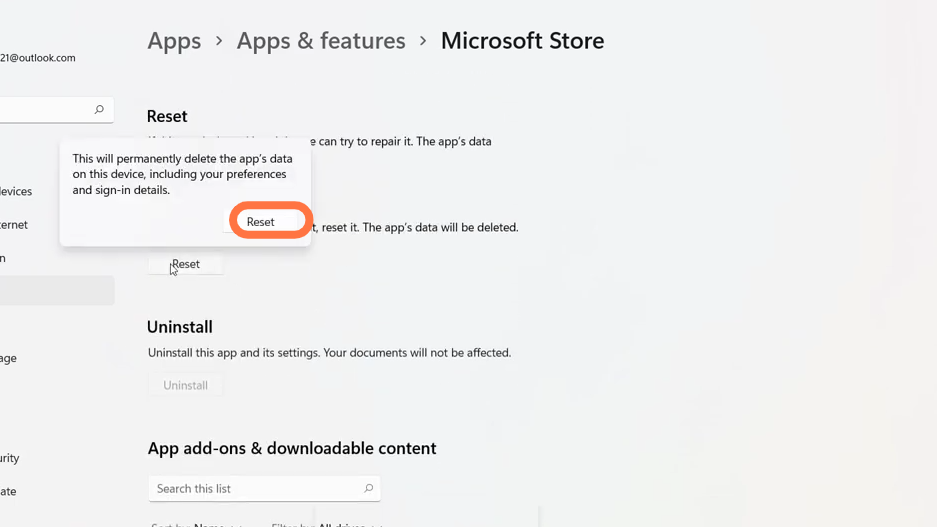
- Now click on the reset tab.
- You will need to restart the PC and then open up the Microsoft store
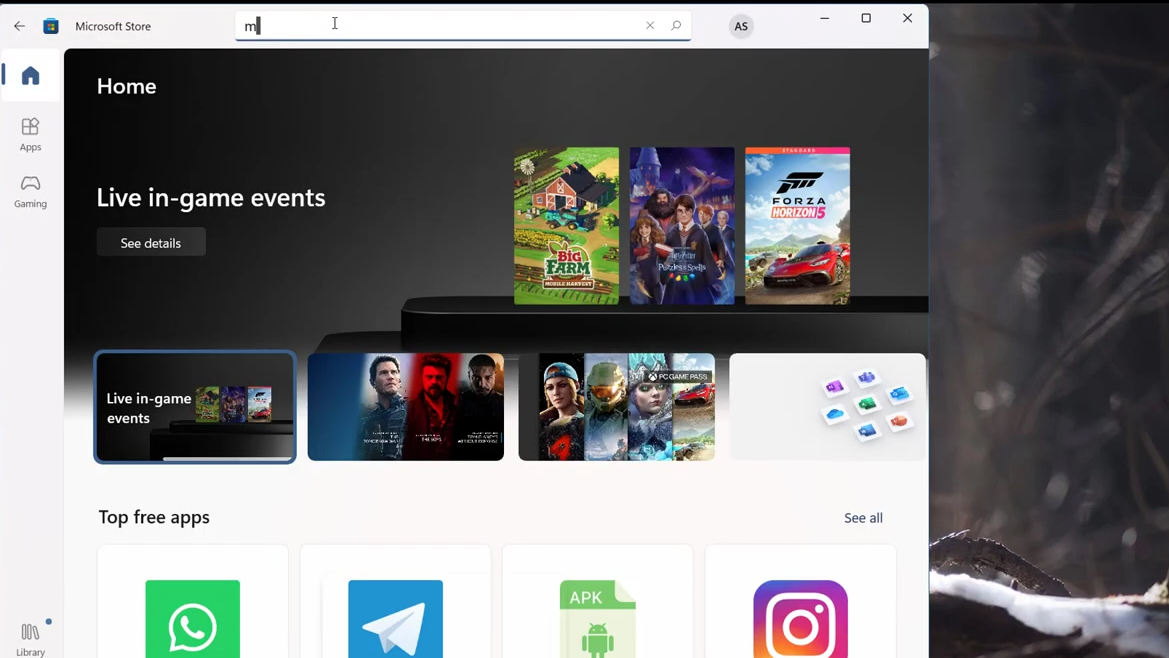
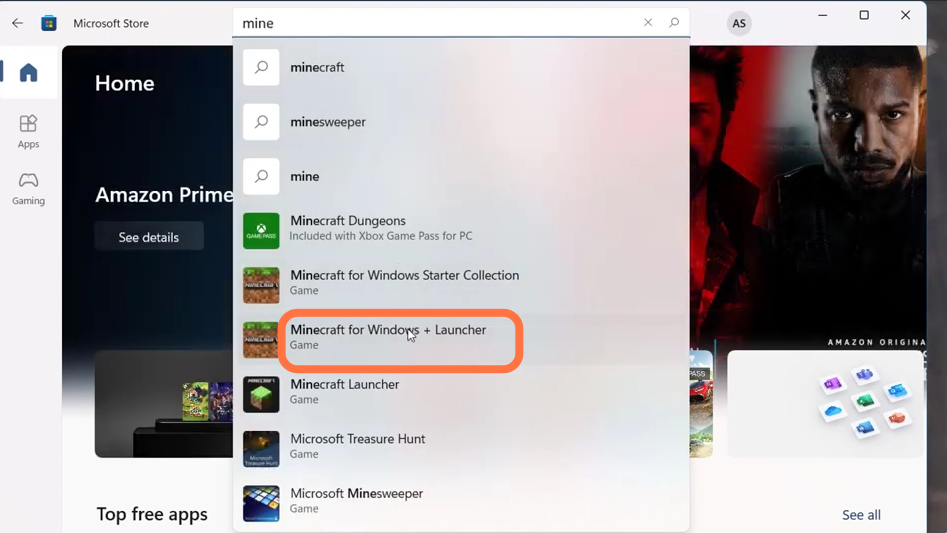
- Search for Minecraft launcher to install it.
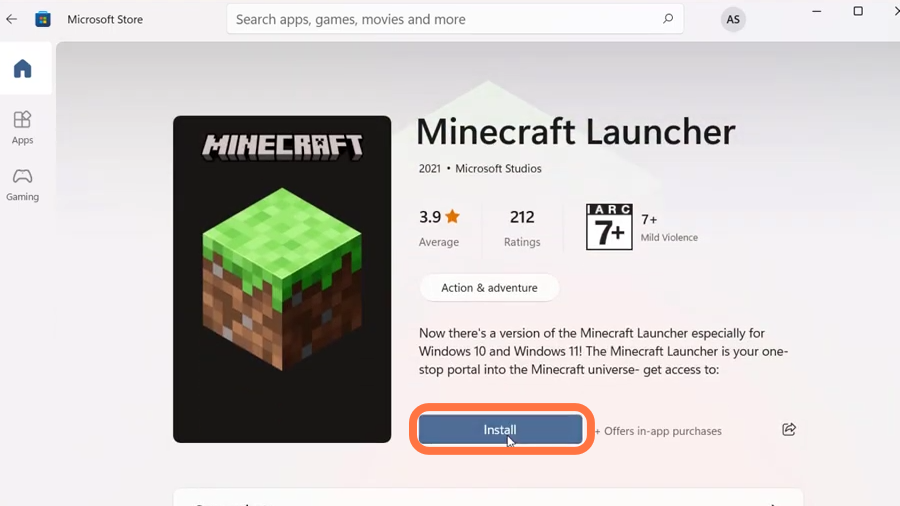
- Click on install, wait for a while and then click on the Play button.
- Now finally restart your PC, hopefully the problem will be resolved.