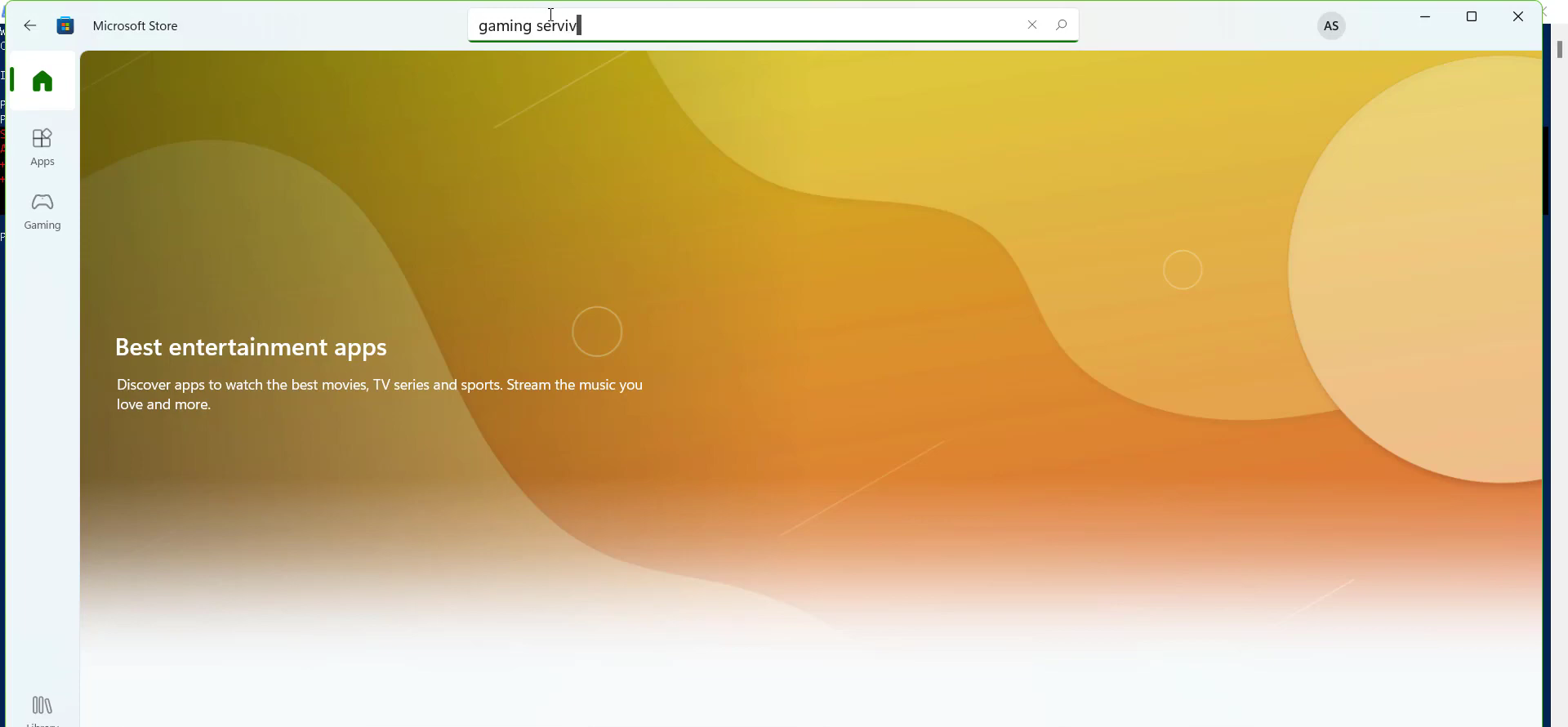
How to Fix Gaming Services Error 0x80073D26
You have to follow the step-by-step instructions below to fix this error.
- You will need to press the Window Key +R, type Regedit and hit OK.
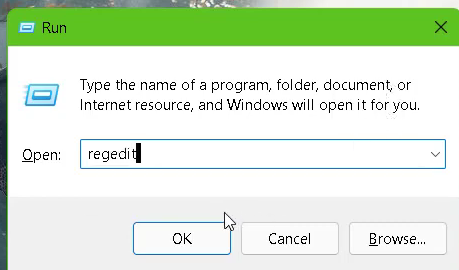
- And then click on the "HKEY_ LOCAL MACHINE" system.
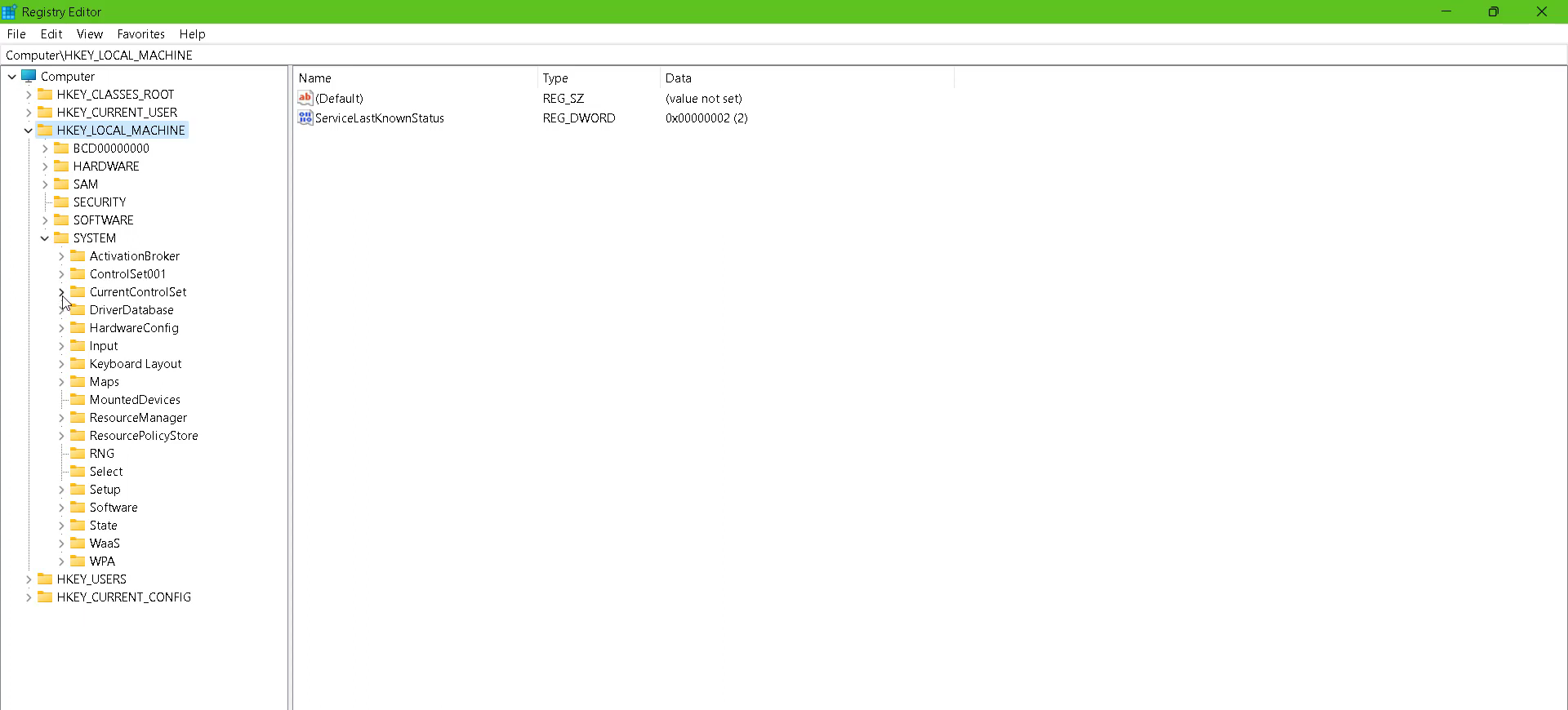
- Tap on Currentcontrolset and go to Services.
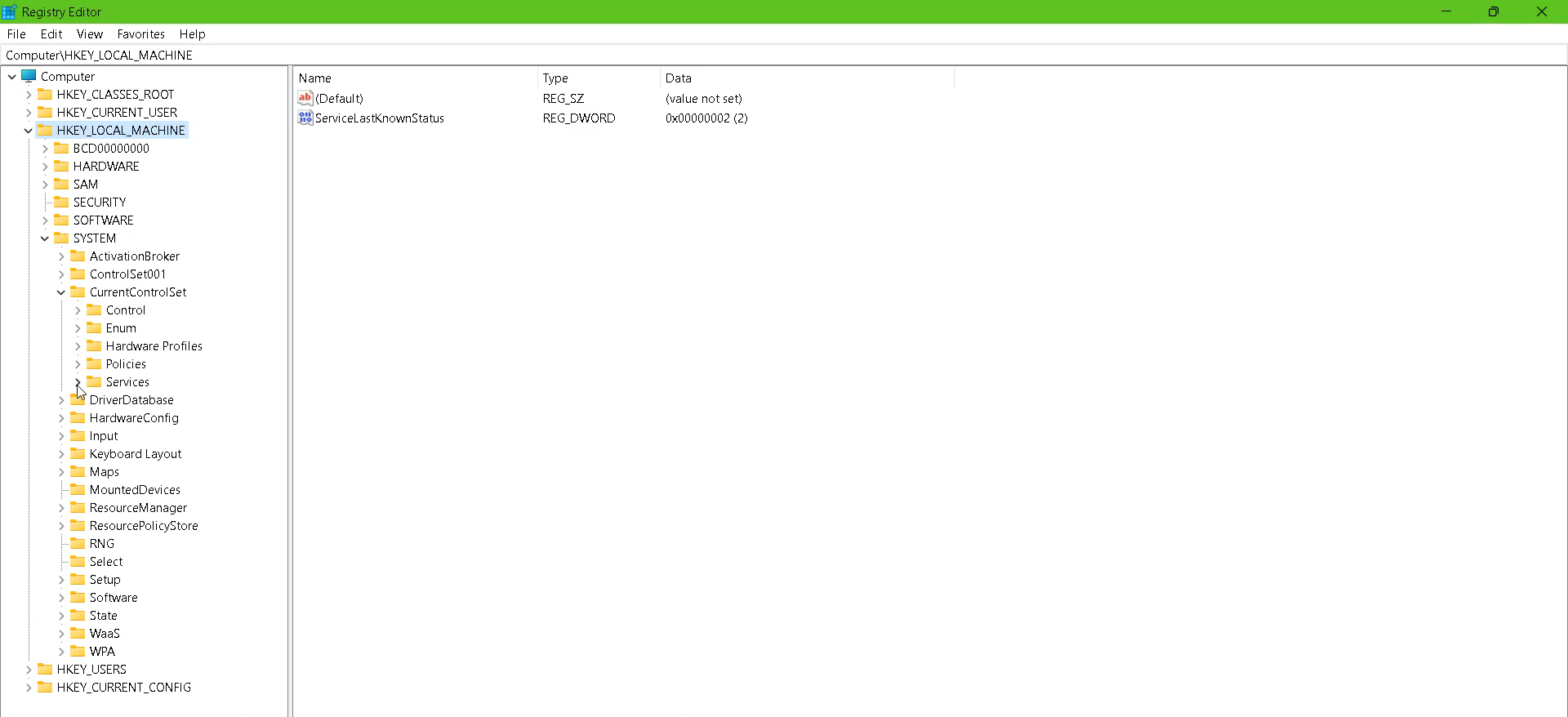
- After that, left click on the GameAppservices and delete it.
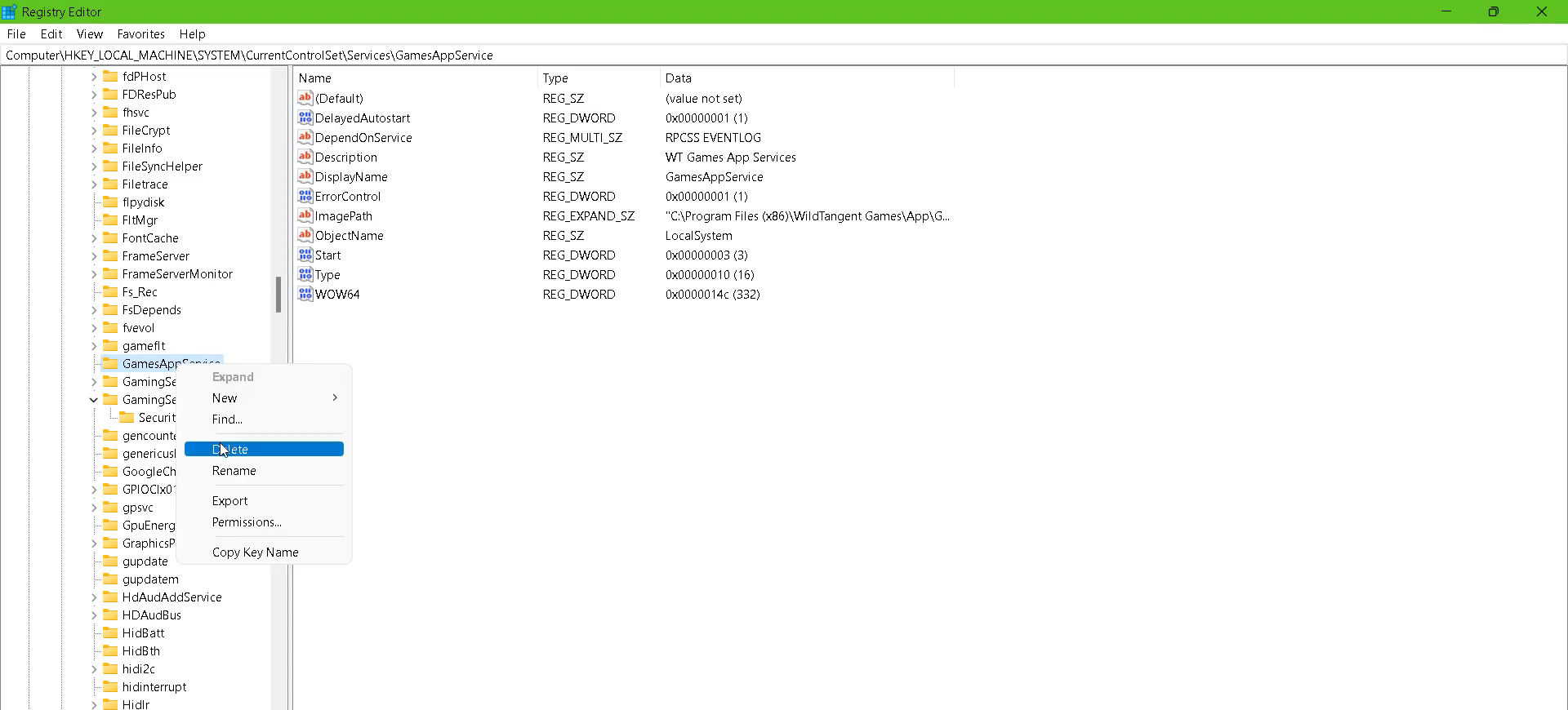
- Then you need to restart your PC.
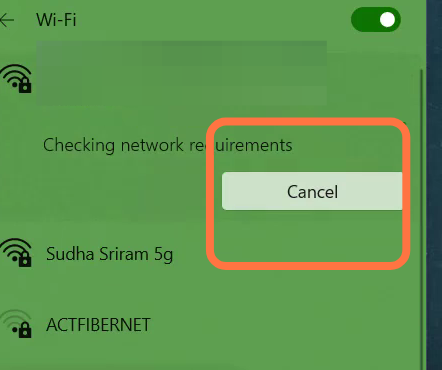
- And connect your PC to a network.
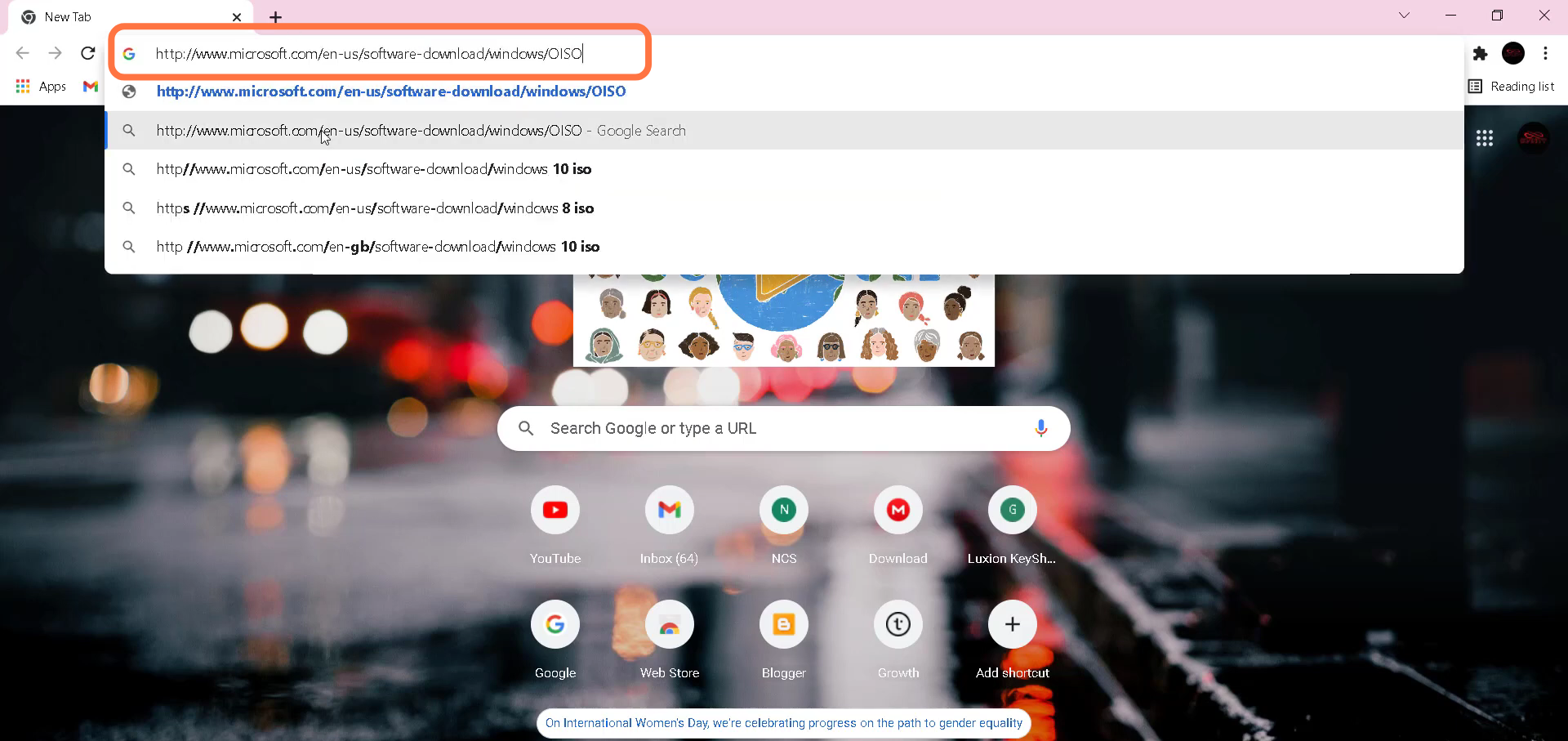
- Enter into Google Chrome and type in link bar http://www.minecraftsoft.com/en-us/software-download/wind ows/O1S.
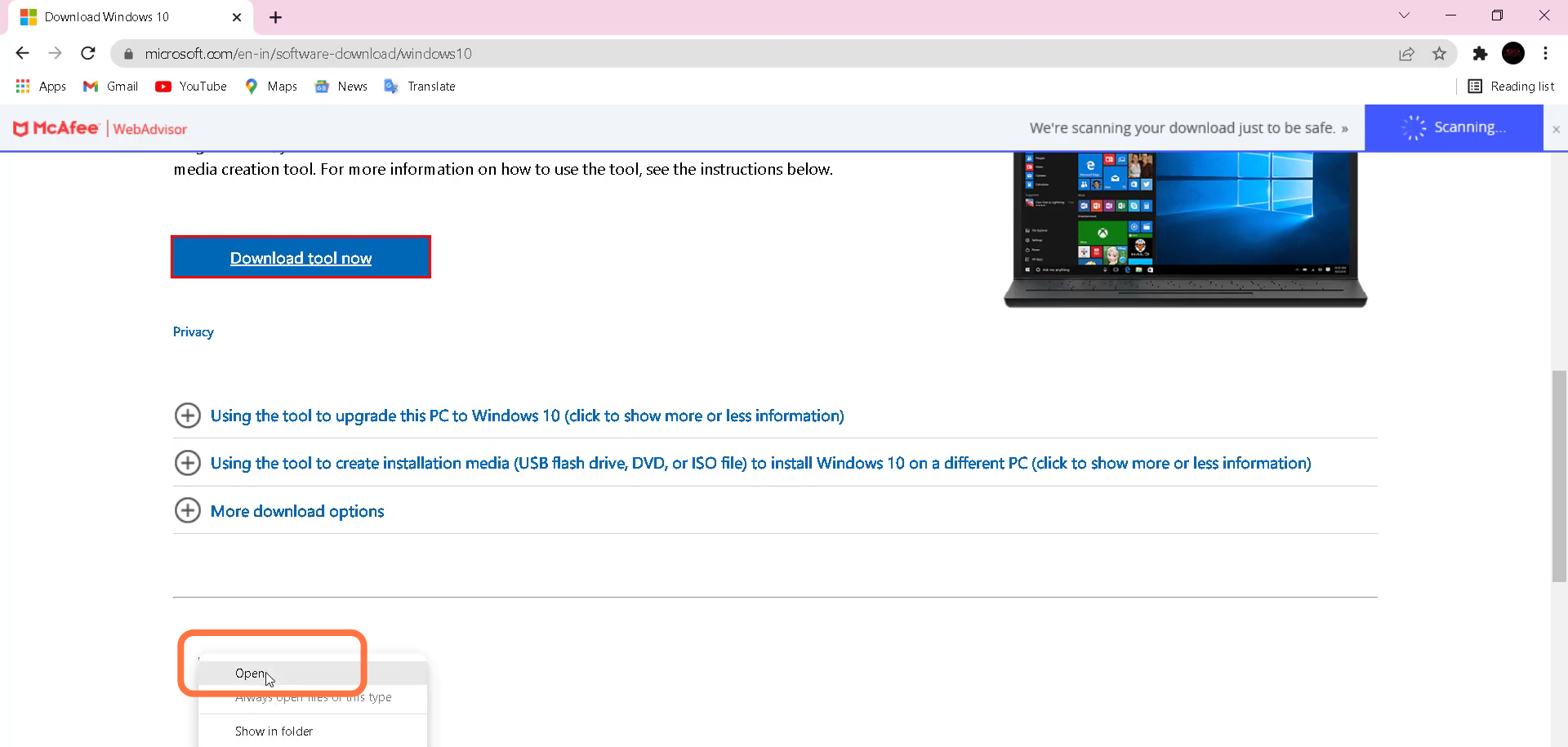
- You need to download it by clicking on the Download button.
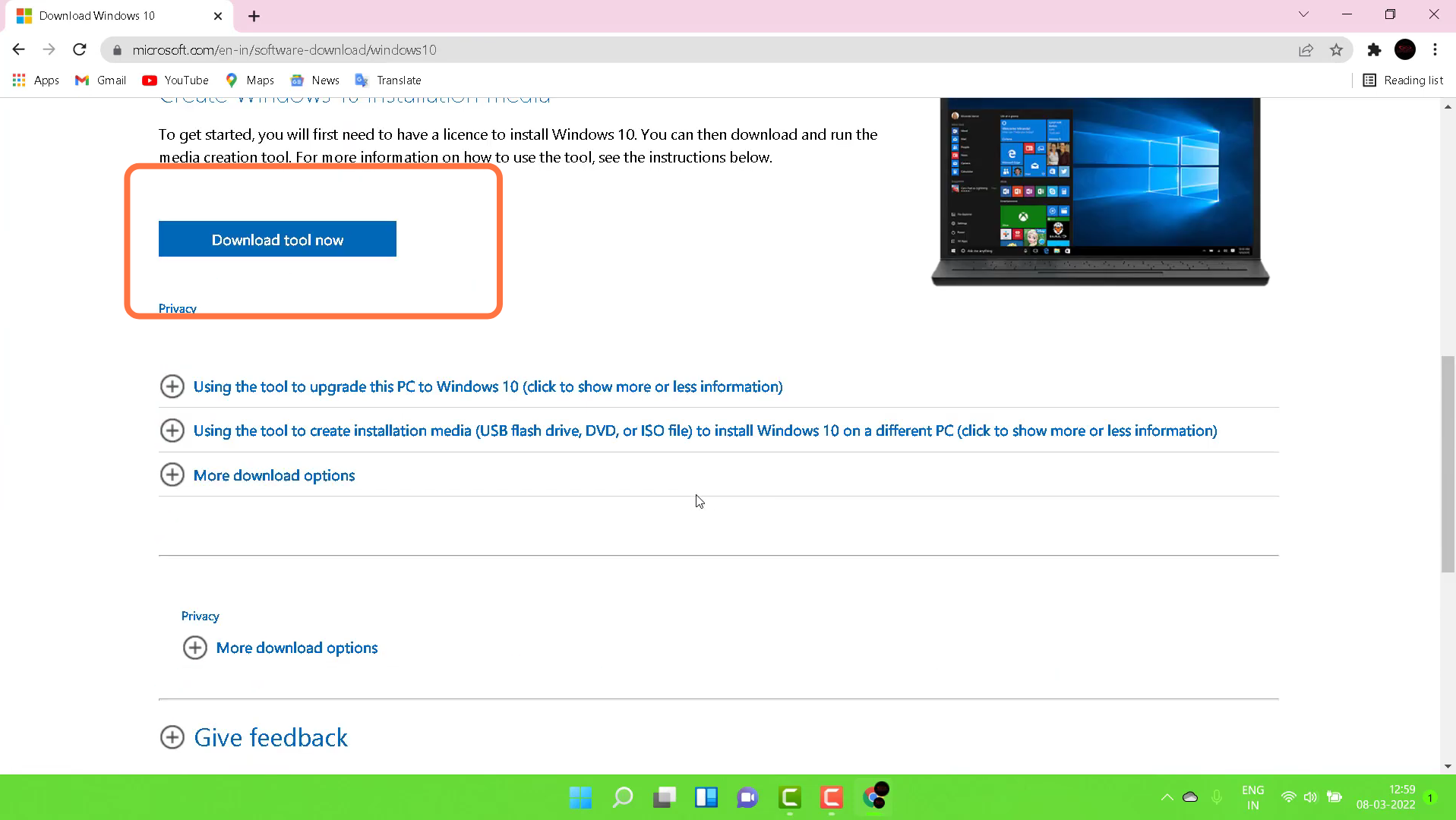
- After that, open the downloaded file "MediaCreatioo...exe".
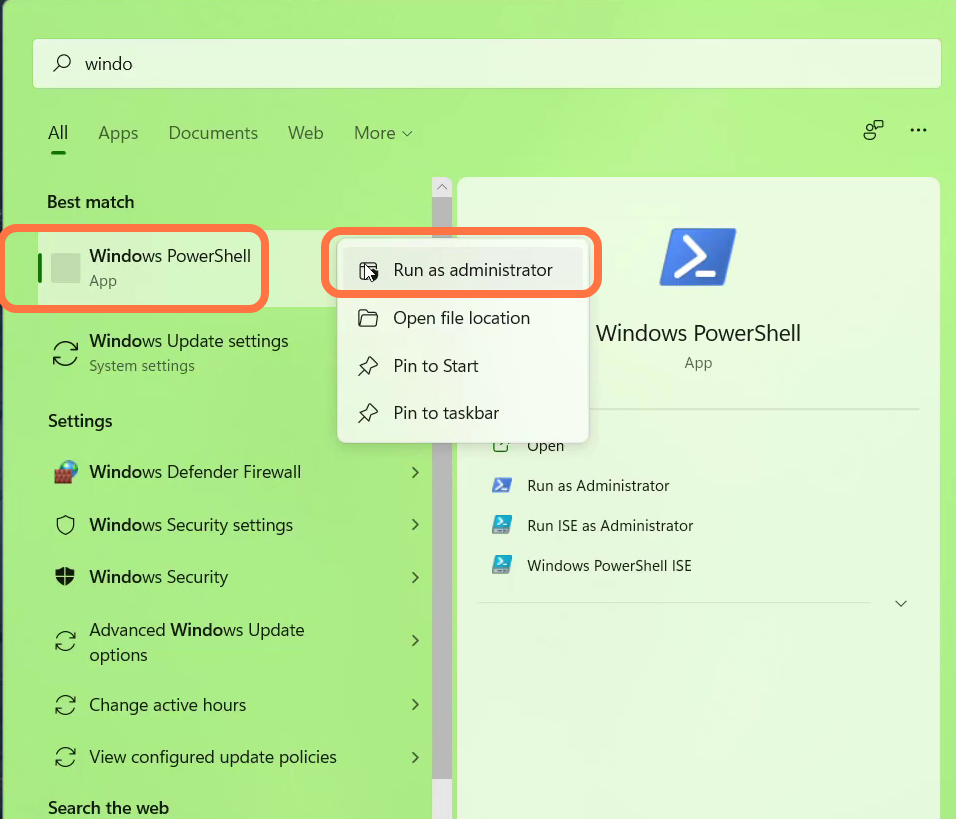
- Open Windows PowerShell and run it as administrator.
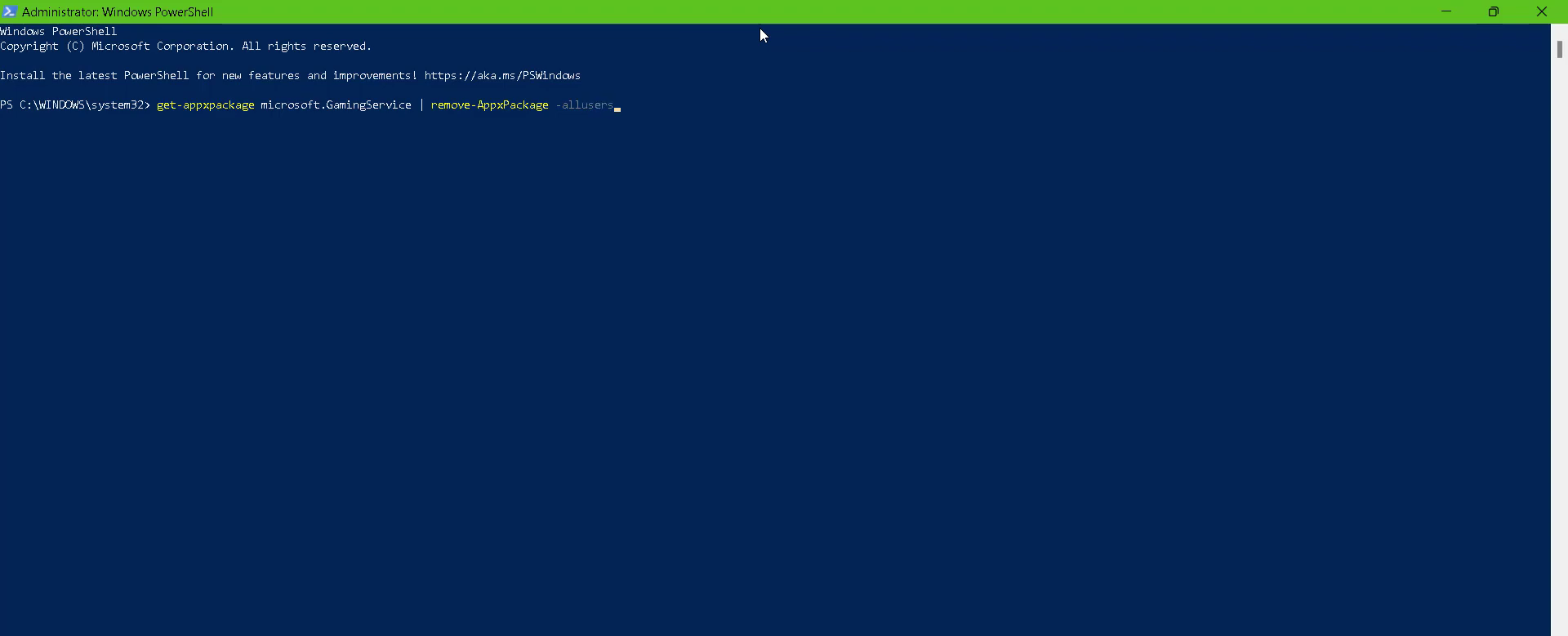
- get-appxpackage microsoft.Gamming service | remove-Appxpackage-alluser
- Finally the problem is solved now.