How To Fix Fortnite Epic Games Download Speed
The most reliable method to fix the “Fortnite Epic Games Download Speed” is explained step-by-step below.
Step 1: Firstly, you need to pause or cancel the download.
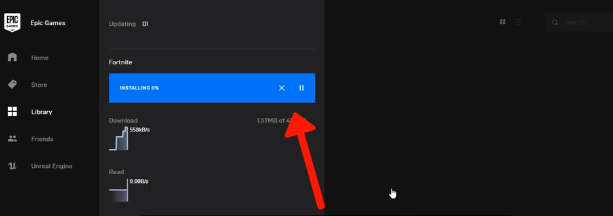
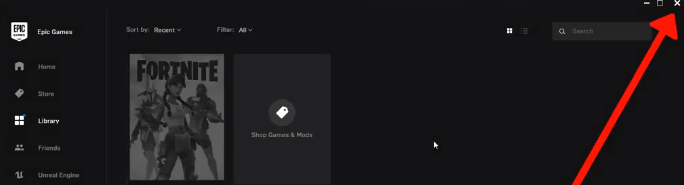
Step 2: Then close the Epic Games Launcher.
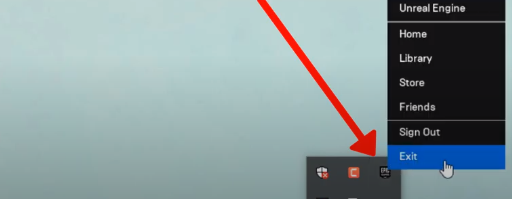
Step 3: Navigate to the system tray and right-click on the Epic Games Launcher. Then click on Exit.
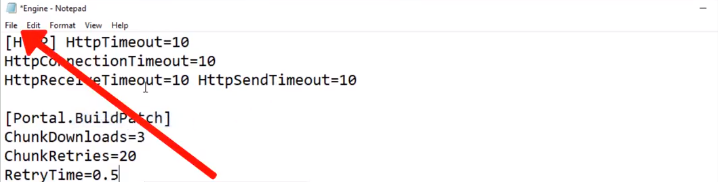
Step 4: Next, you need to copy the code given below.
[HTTP] HttpTimeout=10
HttpConnectionTimeout=10
HttpReceiveTimeout=10 HttpSendTimeout=10
[Portal.BuildPatch]
ChunkDownloads=3
ChunkRetries=20
RetryTime=0.5
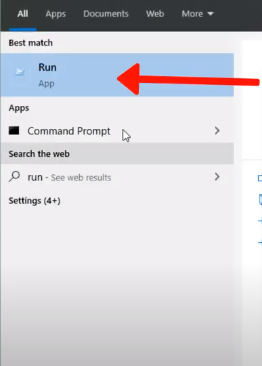
Step 5: Then go to the Start menu, search and click on the Run.
Step 6: Enter %appdata% in the text box, and click on Ok.
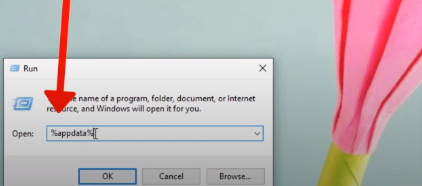
Step 7: Go to the AppData folder.
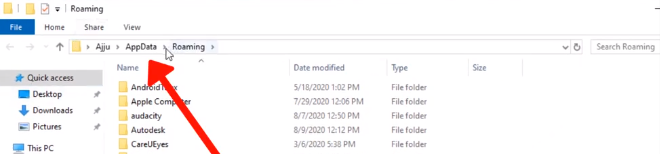
Step 8: And open up the Local folder.
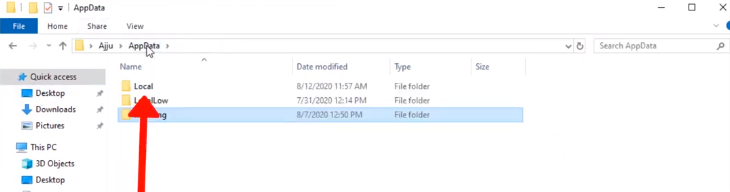
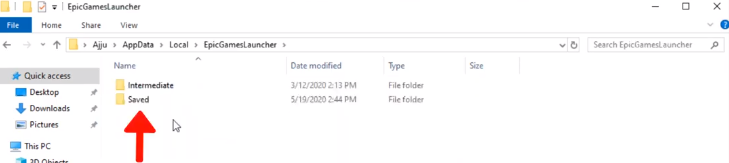
Step 9: Here, find the EpicGamesLauncher folder and then open it.

Step 10: Next, you will need to go to the Saved folder.
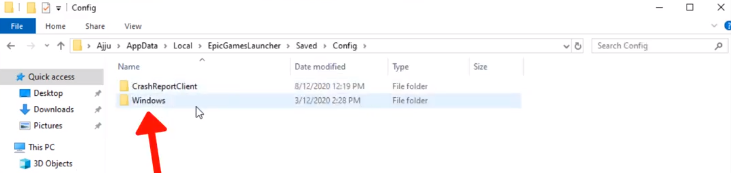
Step 11: Under the Saved folder, go to the Config folder.
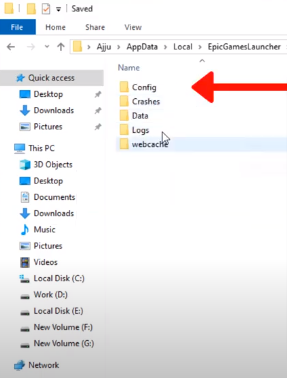
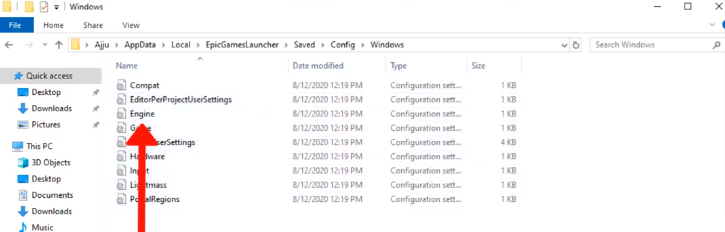
Step 12: Afterward, you have to go to the Windows folder.
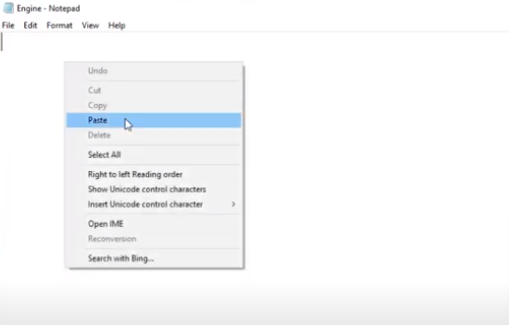
Step 13: Here, double-click on the Engine file to open it up.
Step 14: Now paste the code here which you have copied earlier. Don’t forget to save the file. Click on the File option and then on Save to save it.
Step 15: Once you have done it, open the Epic Games Launcher application.

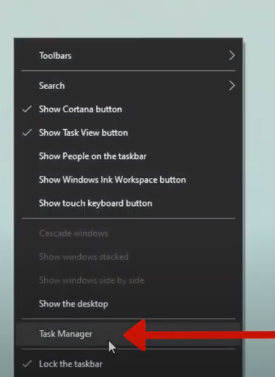
Step 16: Then minimize the application, right-click on the Taskbar and open up the Task Manager.
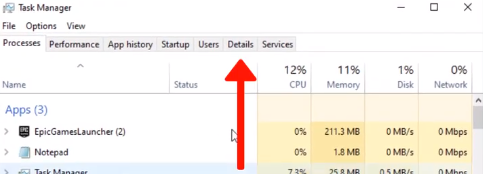
Step 17: Here, you will need to click on the Details tab.
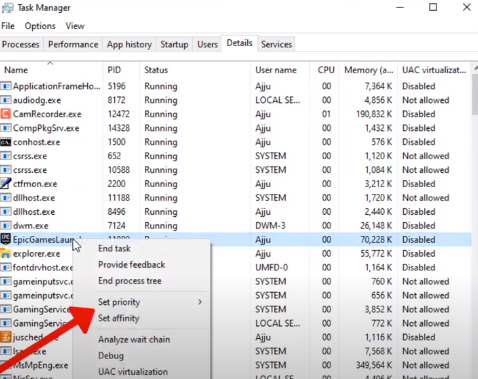
Step 18: Find the Epic Games Launcher application and right-click on it. Then click on the Set Priority option.
Step 19: After clicking on Set Priority, you have to choose the High option.
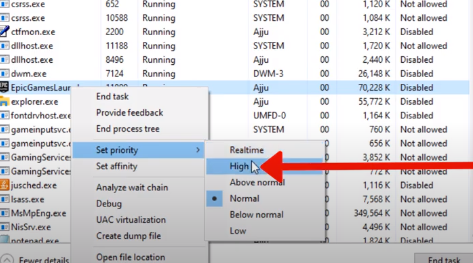
Step 20: Then go with the Change Priority option.
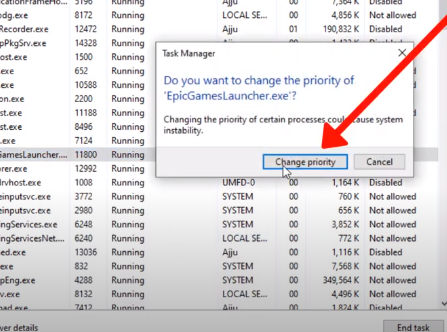
Step 21: Afterward, go back to the Epic Games Launcher application and download by clicking Library, then resume. The game speed will be increased.
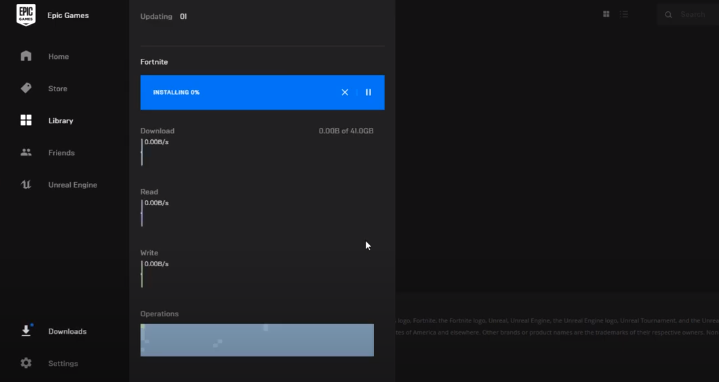
Step 22: If this doesn’t work for you, then you can use the given code and paste it into the Engine file.
[HTTP] HttpTimeout=10
HttpConnectionTimeout=10
HttpReceiveTimeout=10 HttpSendTimeout=10
[Portal.BuildPatch]
ChunkDownloads=4
ChunkRetries=20
RetryTime=0.5
Step 23: Next, again, go to the Task Manager. Change the Priority of EpicGamesLauncher to High.
Step 24: Then again, go back to the Epic Games Launcher application and try to download by clicking Library, then resume. The game speed will be increased for sure this time.