How to Delete Game Saves From Steam Cloud
This guide will let you know how to delete Game Saves from Steam Cloud. You have to go to the specific location to delete the saved files.
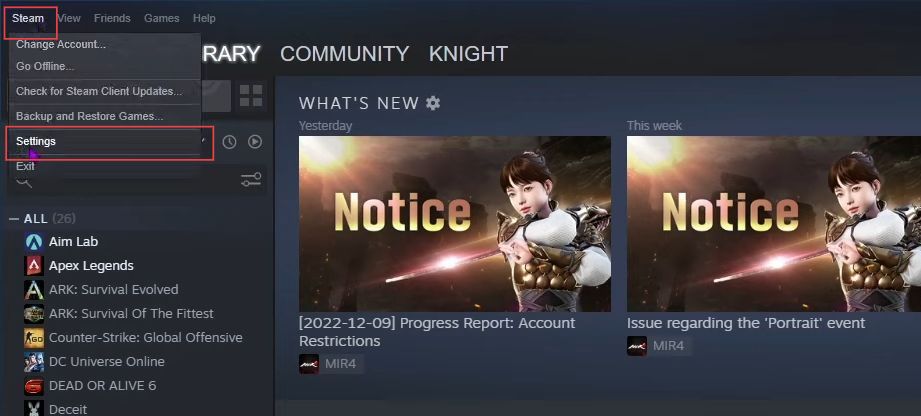
- The first thing you will need to do is open the Steam application on your computer and select the Steam tab from the quick access toolbar.
It will open a drop-down menu. - Once the menu appears, click the Settings option from the drop-down menu.
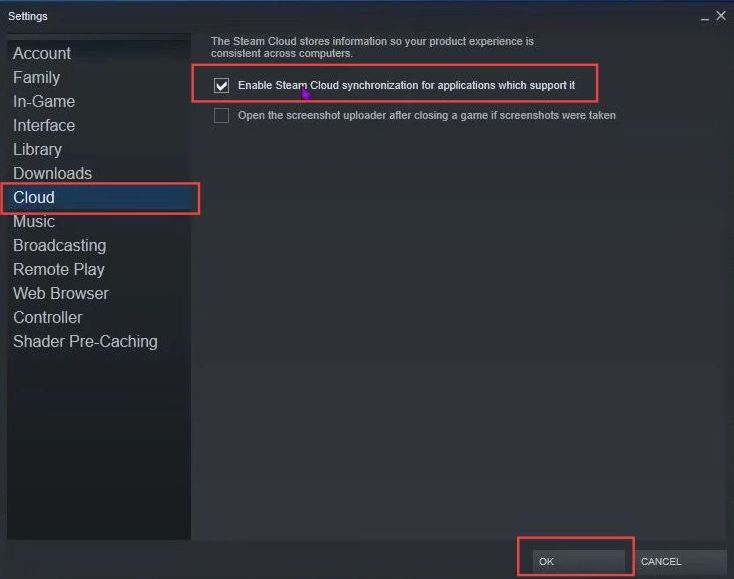
- Upon reaching this window, select the Cloud tab from the left side panel.
- Ensure that the ''Enable Steam Cloud synchronization for applications that support it'' option is unchecked.
- After that, click the OK button from this menu.
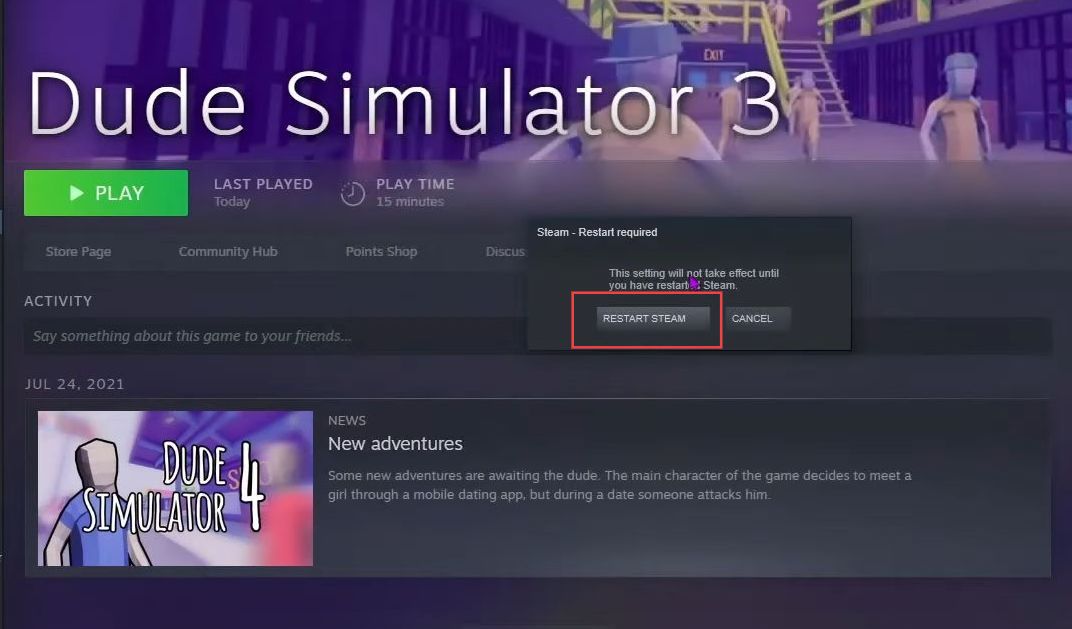
- Now you need to click the Reset Steam button from this menu.
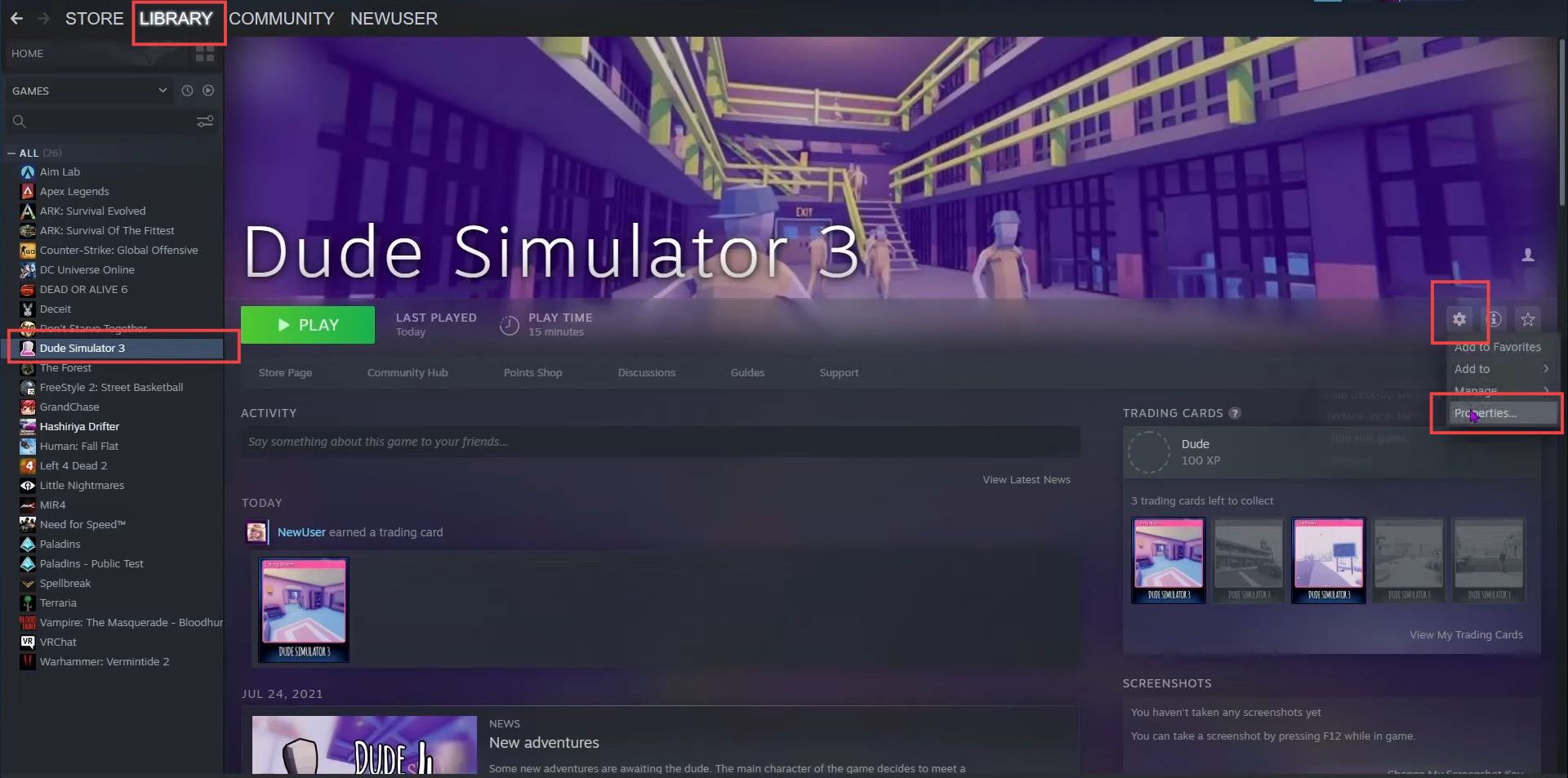
- Again, open the Steam application on your computer and click the Library tab from the quick access toolbar.
- Now you have to select the game for which you want to delete your save folder.
- After that, click the Settings icon from the game and then click the Properties option from the dropdown menu.
- Upon reaching the new window, click the Local Files tab from the left side panel.
- After that, you need to click the Browse button from the menu.
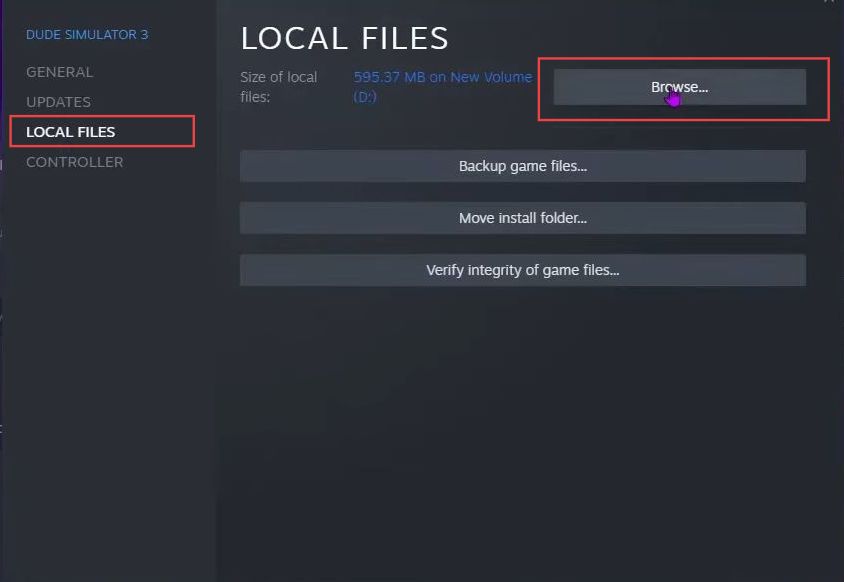
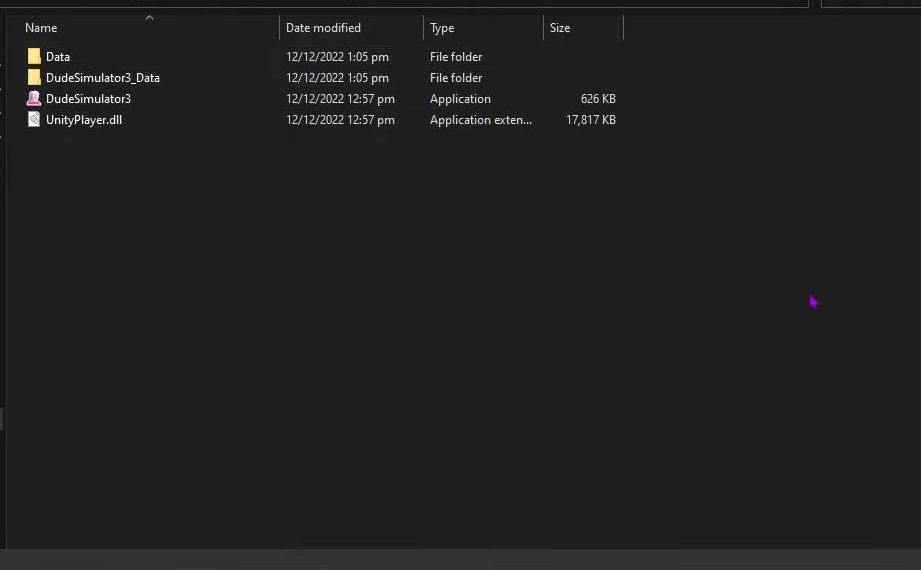
- From this menu, delete the Saves folder to reset the game.
Once you run the game again, it will show the saved files again.