How to Delete Fifa 19 Saves
In this brief guide, you will find a way to delete FIFA 19 saves (e.G. career or UT files). Follow the simple steps in this guide to delete the saves.
Step 1
The first thing you have to do is go to the Customise section.

Step 2
And then open up the Profile.

Step 3
Now you will need to click on Delete.

You can delete career, pro, the journey, squad, or similar files (no Ult. team).

Step 4
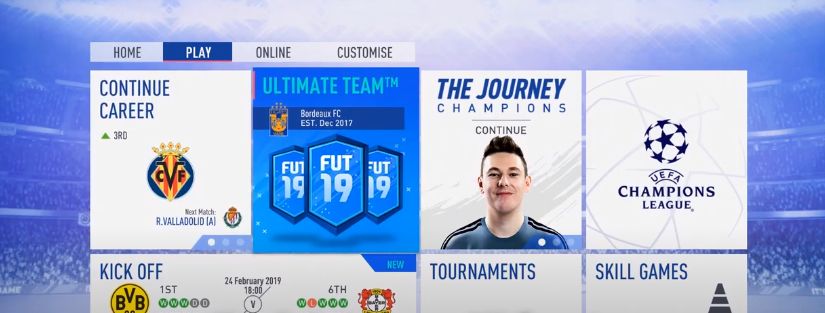
To delete your ultimate team, you have to open the UT menu.
Step 5
And scroll to the “My Club” tab.

The next thing you have to do is click on “Delete club”.

Step 6
Enter this code and confirm Delete; that’s it.

Step 7
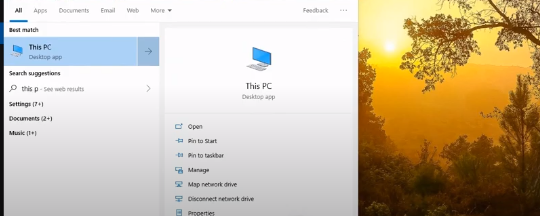
If you are a PC gamer, you can also use the following way to delete their FIFA saves.
You will need to open “This PC”.
Step 8
And then navigate to the “Documents” folder.

Open the “FIFA 19” folder.

Step 9
And select “settings”.

Now you can delete all or single save files.
