Enshrouded Best Settings Steam Deck SteamOS
In this guide, you'll discover the optimal Enshrouded settings specifically tailored for the Steam Deck running SteamOS. Applying these settings will improve performance and increase frames per second (FPS), resulting in a smoother and more immersive gameplay experience.
Steam Deck settings
This section walks you through the necessary changes you need to make in the Steam Deck settings.
- Press the Steam button, go to Settings, and navigate to the System tab.
- Set the OS Update Channel to Stable, enable Cryo Utilities, and set the VRAM size to 4 GB.
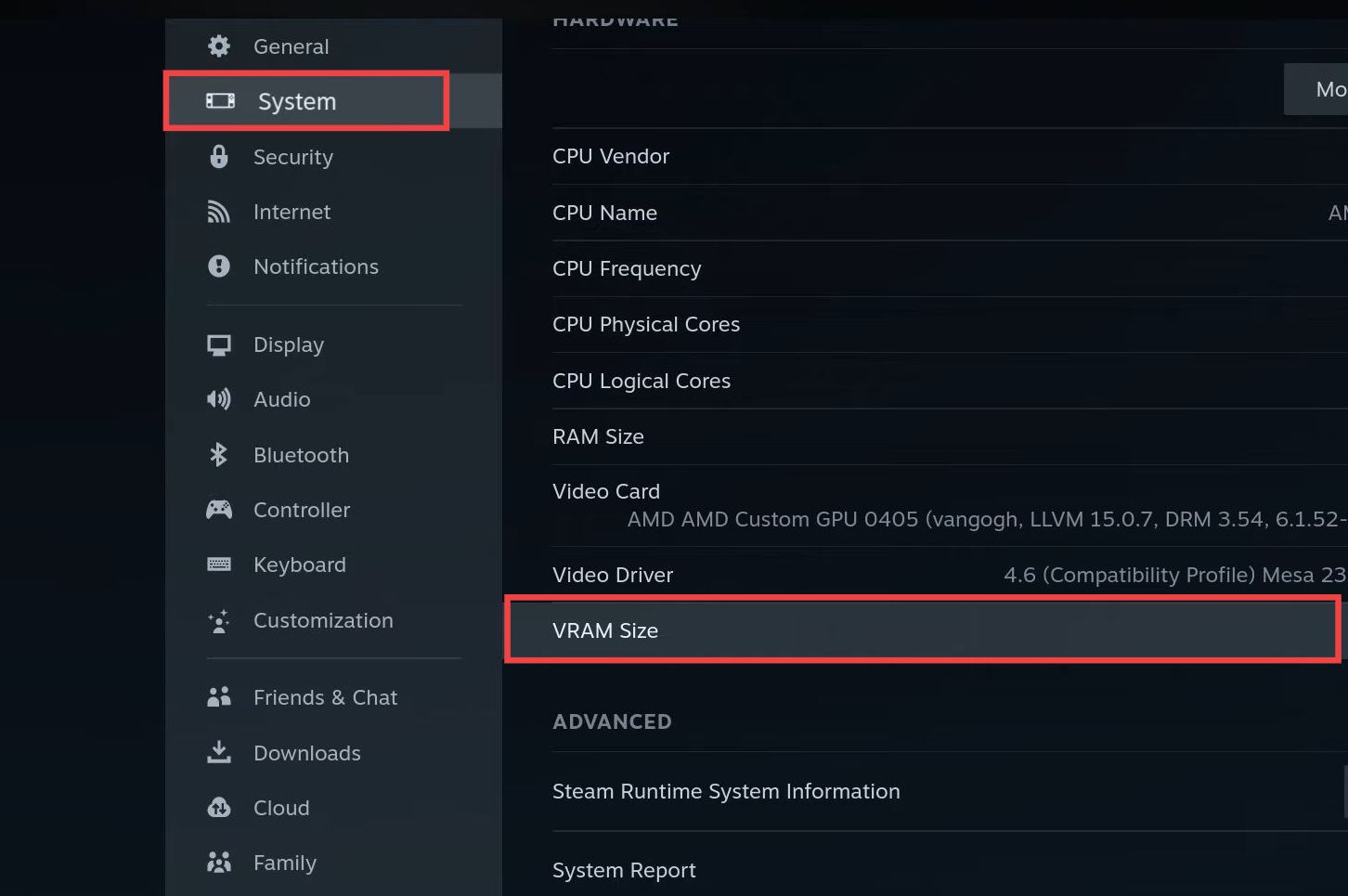
- Next, press the three-dot button on the bottom right, then go to the Performance tab. Disable the Frame Limit, open DeckyLoader Power Tools, and enable SMT. Set the Threads and Governor to Performance.
In-game settings
This section explains how to boost performance by adjusting the in-game settings.
- Open the in-game settings and navigate to the Display tab. Set the Display Mode to Fullscreen, Resolution to 1280 × 720 (Native), and Resolution Scale to 1024 × 576 (80%).
- Set the Field of View to Medium, turn off V-Sync, and enable Limit Framerate in the Background.
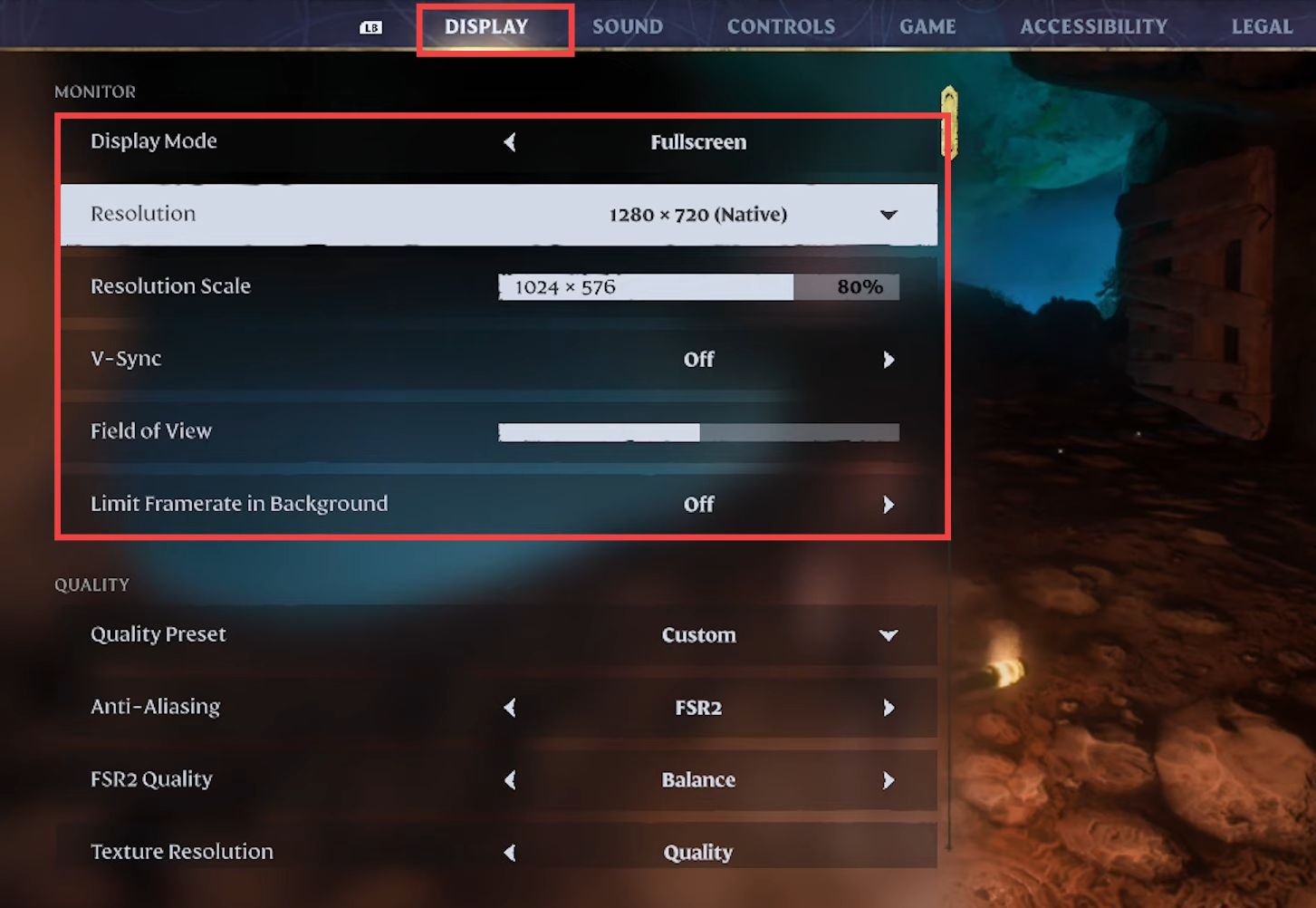
- Set Anti-Aliasing to FSR2, Shadow Quality to Performance, FSR2 Quality to Balanced, and Texture Resolution to Quality.
- Turn off Contact Shadows, set Indirect Lighting and Reflections to Balanced, and set Fog Quality to Performance.
- Set Volumetric Shadow Quality and SSAO to Performance. Turn off Distant Objects and Voxel Detail Models. Disable Tessellation and Point Light Shadows, and set Small Foliage to Performance.

With these settings, you can expect around 30–40 FPS inside caves and roughly 20 FPS in the outside world.