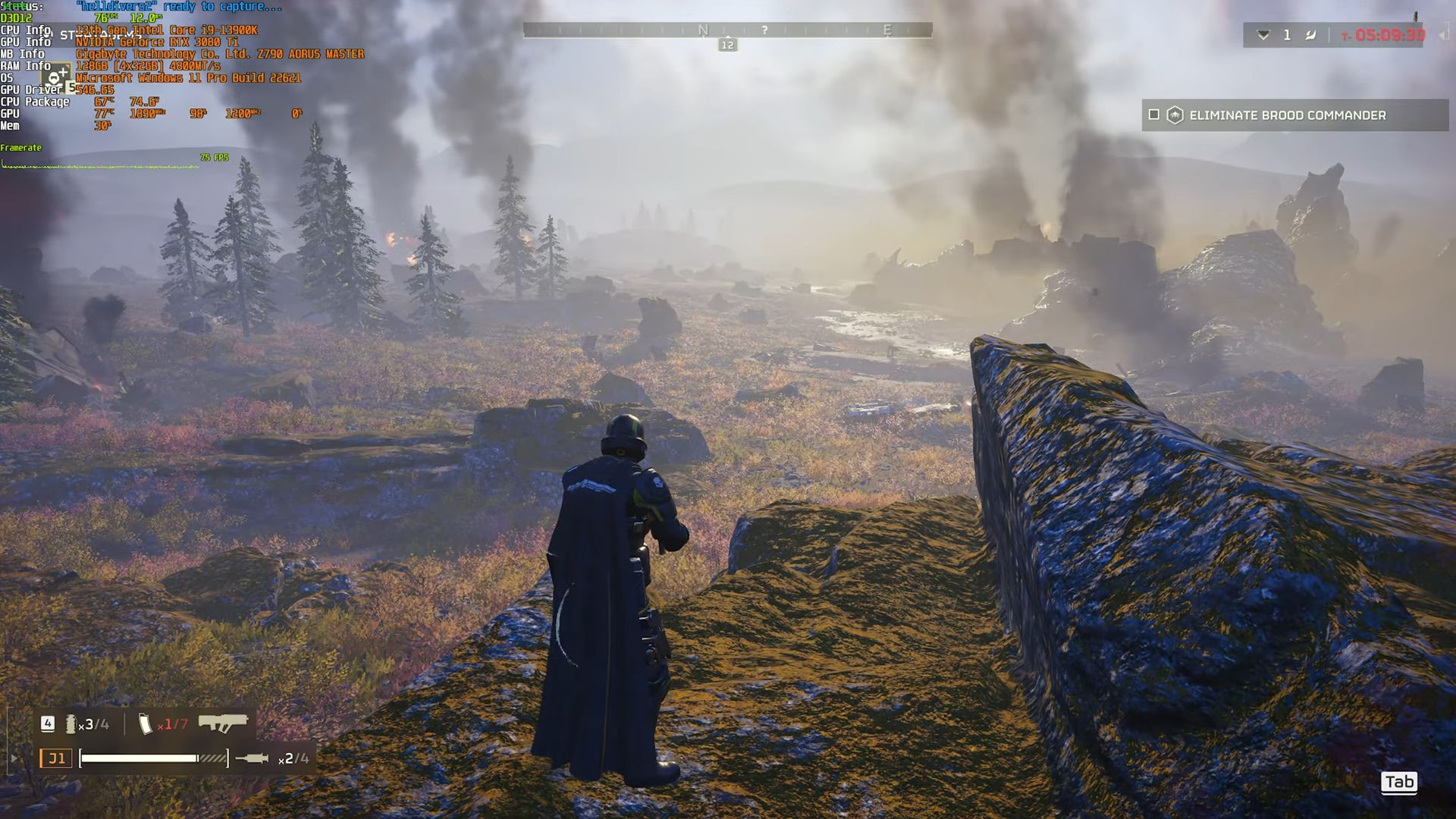
Best Helldivers 2 Optimization Guide - Increase FPS
In this guide, you’ll find the optimal settings to maximize FPS and overall performance in Helldivers 2.
Whether you are aiming for higher frame rates or want to fine-tune gameplay for better responsiveness, this guide provides practical recommendations to help you get the best performance in Helldivers 2.
FPS of Presets
This section explains how to set up presets in the game. Multiple preset options are available, allowing you to choose what best suits your system.
- Open the in-game settings and navigate to the Graphics tab.
- Test different presets to find the one that works best for your setup.
The game generally runs well on most presets.
Display Settings
This section covers how to adjust display and graphics settings to achieve maximum FPS and smoother performance.
- Go to the Display tab and set the vertical Field of View based on your preference. If you experience motion sickness, lower Camera Shake and Motion Blur.
- Scroll down to Graphics Device and select your graphics card. Set the Resolution to match your display and test different Render Scale options to see which gives the best FPS.
Each option affects performance differently. Ultra Quality typically delivers around 56 FPS.
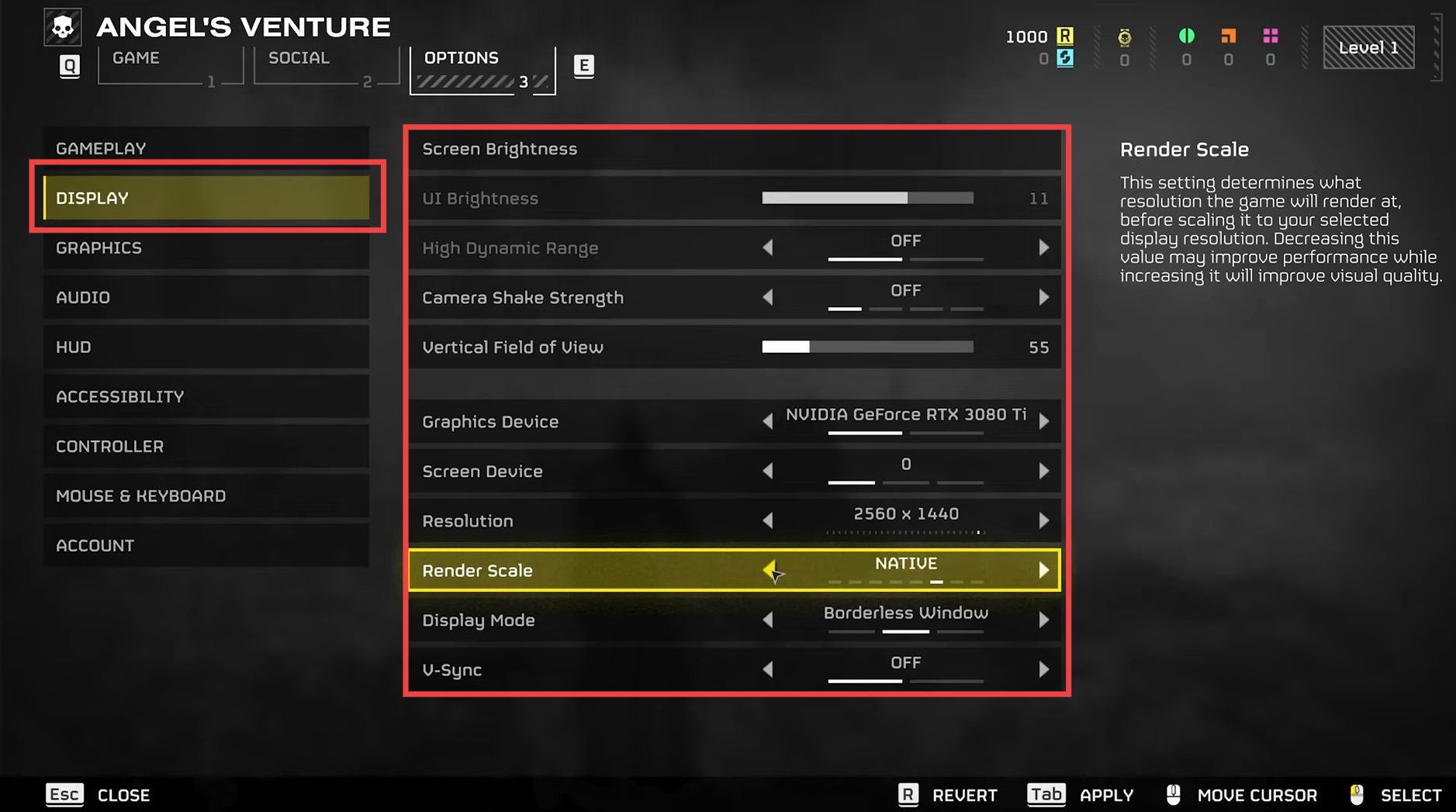
- Turn off V-Sync and Depth of Field for better visibility at long distances. Enable Bloom to enhance the visual style and adjust Sharpness to your liking.
- Texture Quality depends on your GPU’s VRAM. Use low for 3 GB, medium for 6 GB, and ultra if you have 8 GB or more.

- If you have a strong CPU, set Render Distance to high. Lower Particle Quality if your system struggles with effects. Set Reflection Quality to low for a noticeable FPS boost, reaching around 83 FPS.
- Turn off Ambient Occlusion for extra performance, then adjust Volumetric Cloud Quality based on your preference.
- Anti-aliasing has a major impact on FPS. It is recommended to keep it enabled at Native quality with the Upscaling option. Finally, set Vegetation to ultra to make the world feel more alive.