6 Ways to Fix Minecraft Error 0x80070057 UNKNOWN code Deep Ocean
This guide provides seven ways to fix Minecraft Error Code: 0x80070057 | UNKNOWN code: Deep Ocean. Something went wrong.
Method 1: Update Drivers
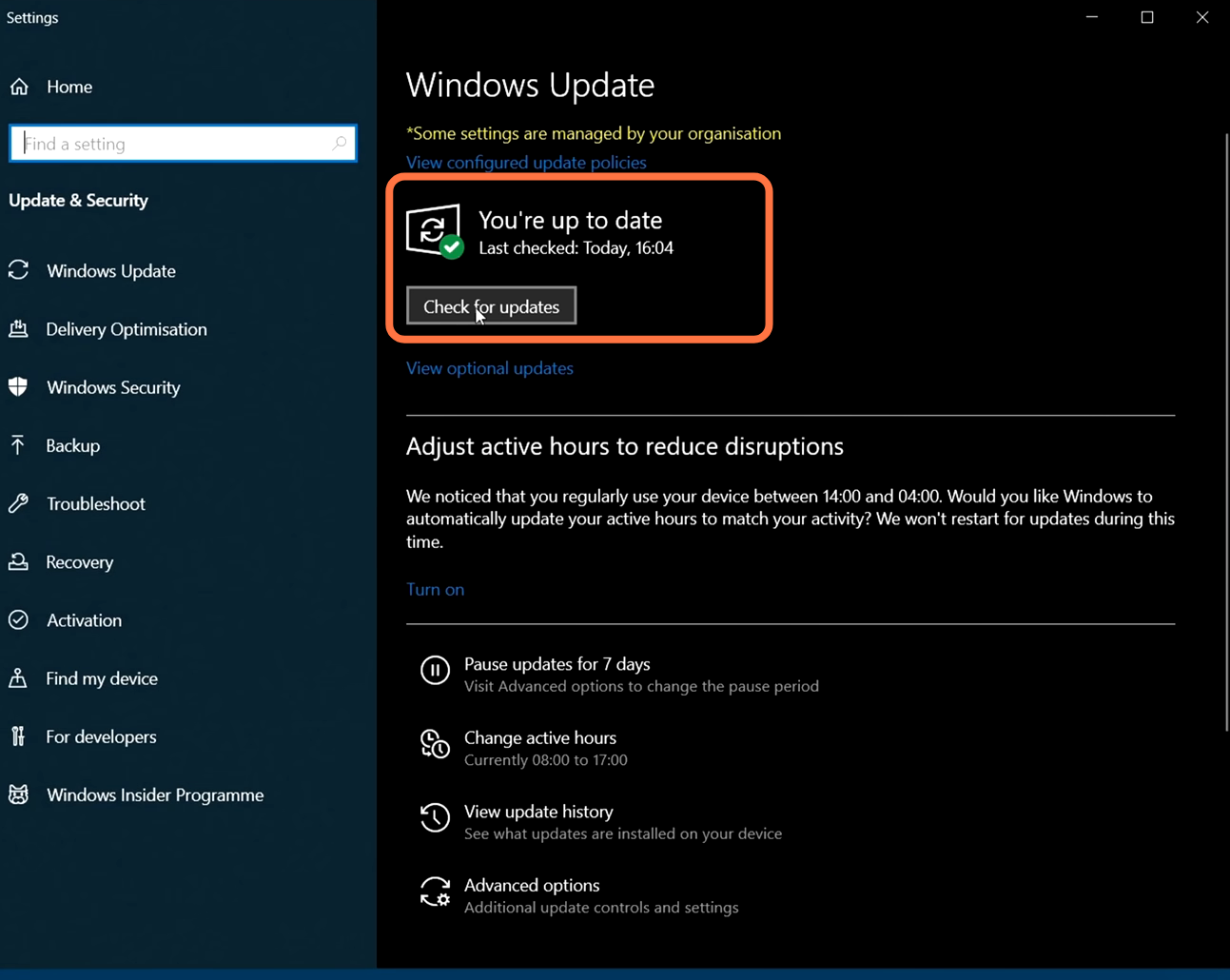
1- First, make sure your Windows is fully updated. Go to the bottom-left side of your screen, click the Search button, type “update,” and select “Check for updates.”
2- A new window will open. Scroll down and click “Check for updates.” Your system will scan for available updates.
3- Now open the Microsoft Store and go to Library from the bottom-left side of the screen. Click on Get updates from the top-right side. After the updates are complete, restart your PC and relaunch Minecraft to check if the issue is fixed.

Method 2: Repair & Reset Minecraft Launcher
1- Open the Settings menu and click on Apps from the left side. Select Installed apps, scroll down, find Minecraft Launcher, click the three dots, and choose Advanced options from the drop-down menu. Click Repair and then Reset. Try running the launcher again and check if it works.

Method 3: Reset Microsoft Store
1- Press the Windows key on the bottom-left side of the screen and type “wsreset”. Right-click on wsreset from the results and select Run as administrator.

2- A black window will appear. Let it run for about a minute. Once the process is complete, Microsoft Store will open. Try launching Minecraft again and see if it works.

Method 4: Play Minecraft on the Xbox App
1- If you already have the Xbox app installed, open it and launch Minecraft. If not, open the Microsoft Store, use the search box to type Xbox, select the Xbox app from the results, and click Get.

2- After installation, open the Xbox app and play Minecraft to see if the issue is fixed. If not, sign out of the Xbox app, sign back in, and try relaunching Minecraft.

Method 5: Restart Xbox Services and Gaming Services
1- Press the Windows key + R, type “services.msc,” and press Enter. Scroll down and locate Xbox services. Right-click on Xbox Accessory Management Service and select Properties.

2- Change the Startup type to Automatic and click OK. On the left side, click “Restart the service.” Repeat this for other Xbox services. Then find Gaming Services and restart it. Once done, relaunch Minecraft and check if the issue is fixed.

Method 6: Uninstall and Reinstall Minecraft
1- Open the Settings menu and click on Apps. Select Installed apps, scroll down, and find Minecraft Launcher. Click the three dots, choose Uninstall, and restart your PC.

2- After the reboot, open the Microsoft Store and reinstall Minecraft Launcher. Finally, try running the launcher and see if it works.

Method 7: Uninstall and Reinstall Windows Store
1- Press the Windows key and type “Windows PowerShell.” Right-click on Windows PowerShell and select Run as administrator. Enter the following command and press Enter.
Get-AppxPackage windowsstore | Remove-AppxPackage
2- Restart your PC and reopen Windows PowerShell. Enter the command below and press Enter. Relaunch Minecraft and check if the issue is resolved.
Get-AppxPackage -allusers Microsoft.WindowsStore | Foreach {Add-AppxPackage -DisableDevelopmentMode -Register "$($_.InstallLocation)\AppXManifest.xml"}